QC+Counting (Qualitätskontrolle und Zählen)
Schritt 1: Auftrag wählen
Wählen Sie in der Übersicht die Aufgabe QC + Counting und starten Sie den Task über das Fortschrittsmenü. 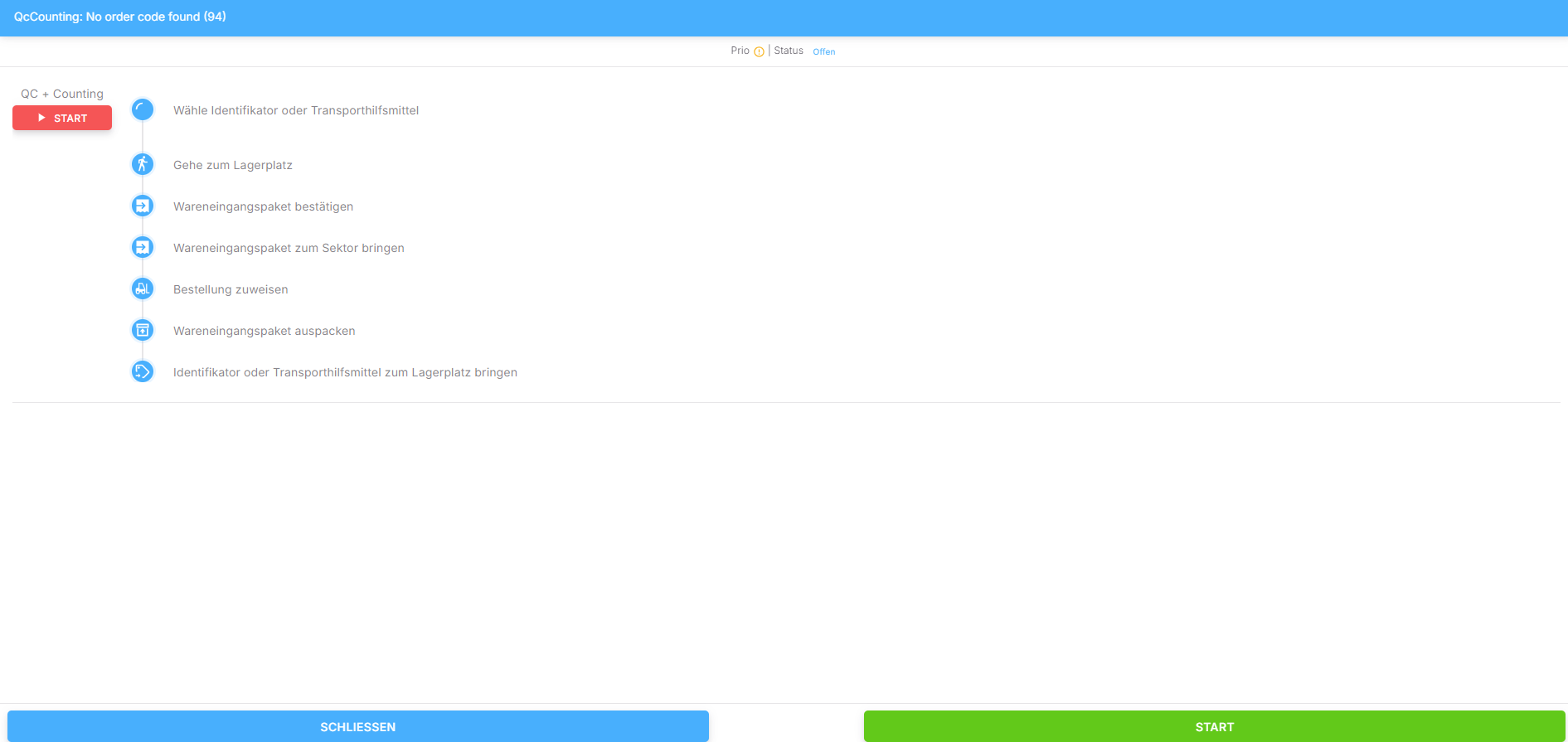
Schritt 2: Identifikator/Transporthilfsmittel wählen
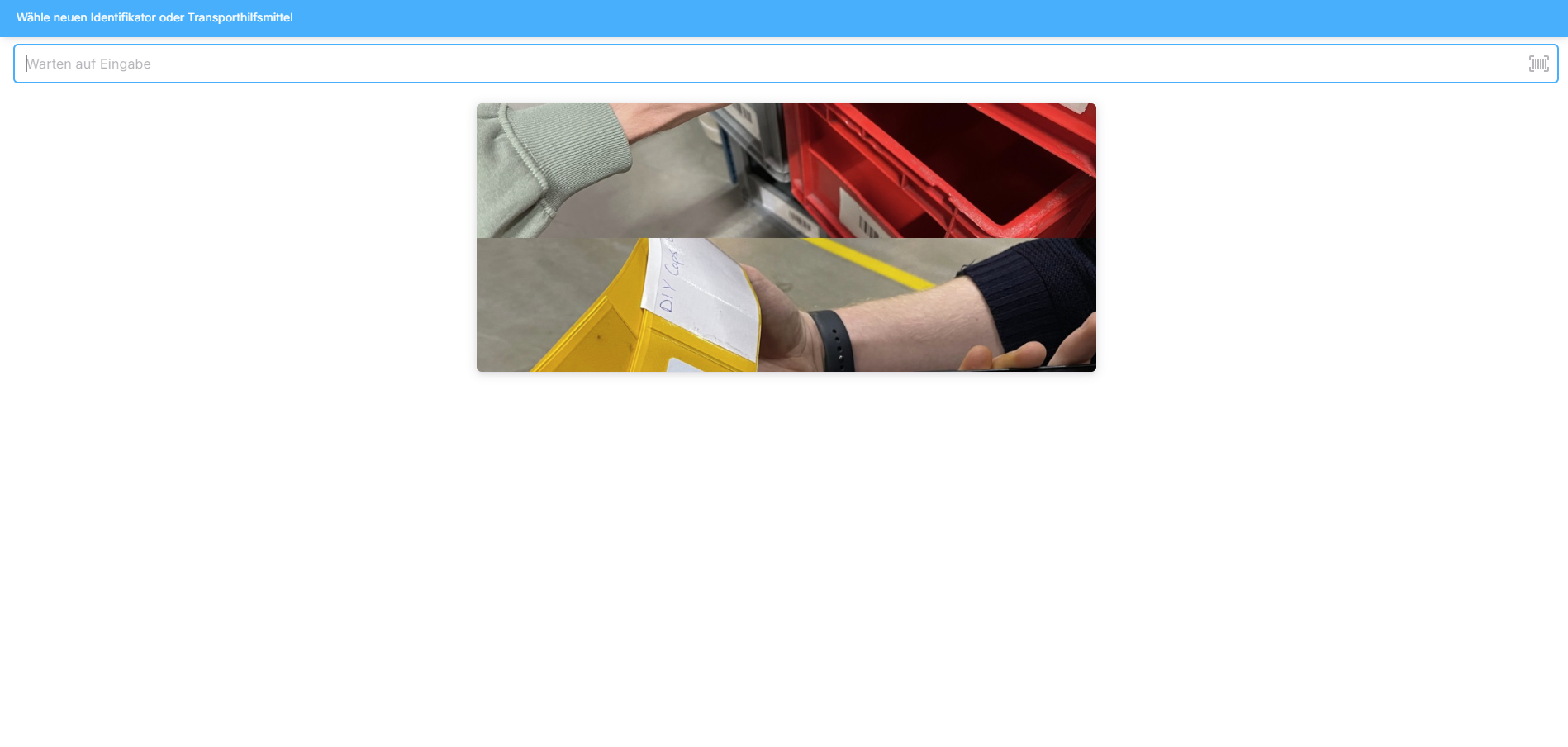
Wählen Sie einen Identifikator bzw. ein Transporthilfsmittel. Scannen Sie den Barcode oder geben Sie die Kennung manuell ein.
Schritt 3: Zum Lagerplatz gehen
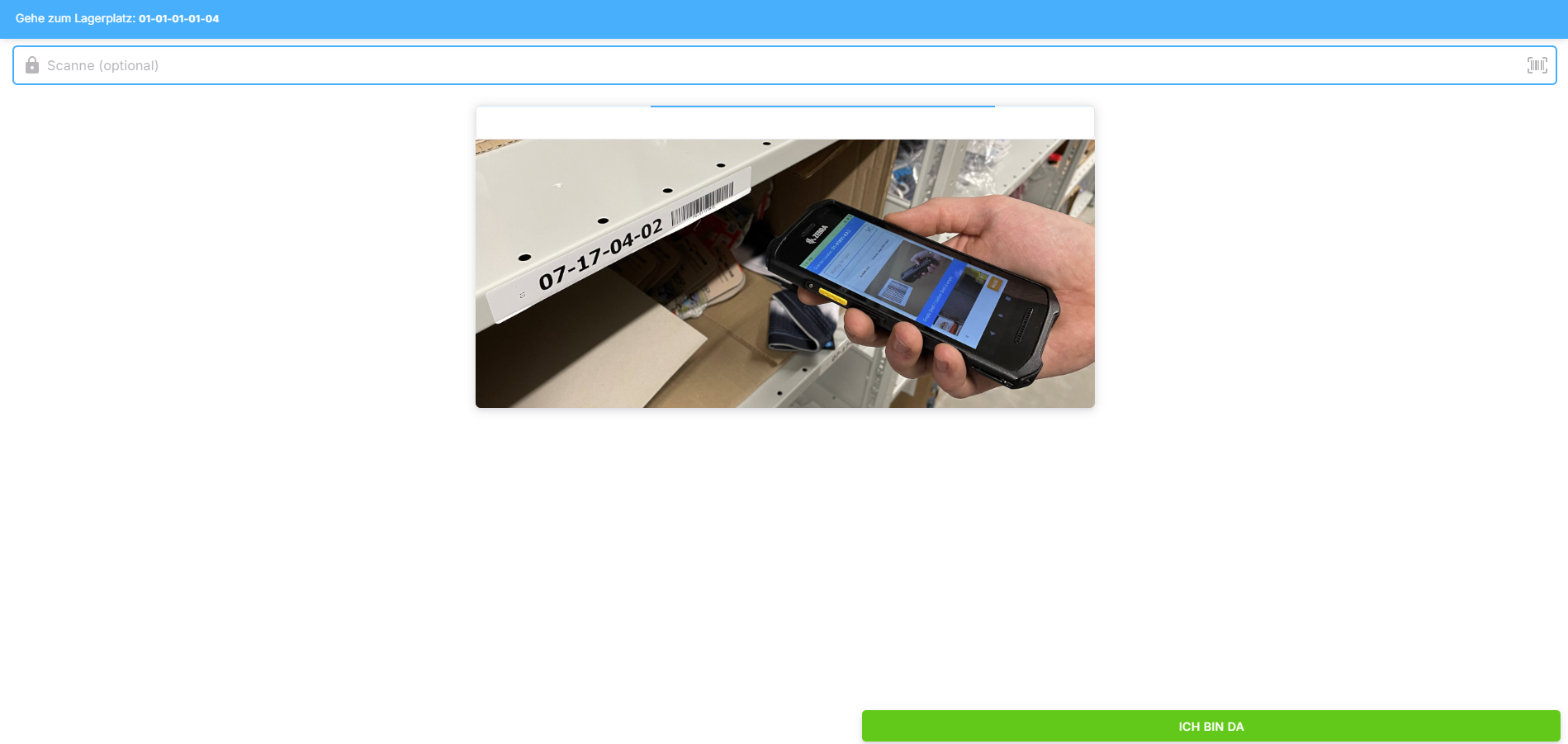
Gehen Sie samt Transporthilfsmittel zum Lagerplatz und bestätigen Sie Ihre Ankunft in der App.
Schritt 4: Wareneingangspaket scannen
Scannen Sie den Barcode des Pakets, dessen Inhalt der Qualitätskontrolle unterliegt. 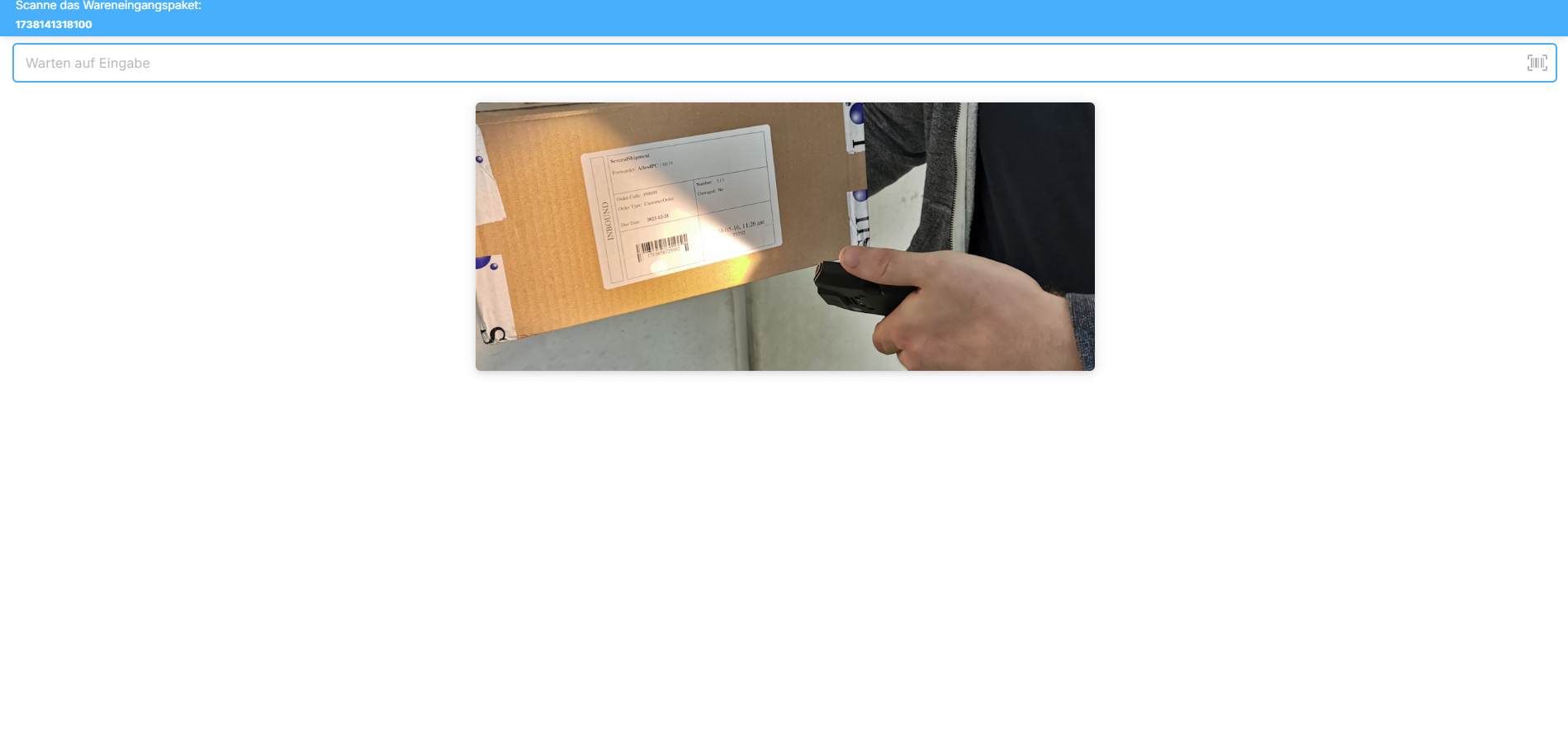
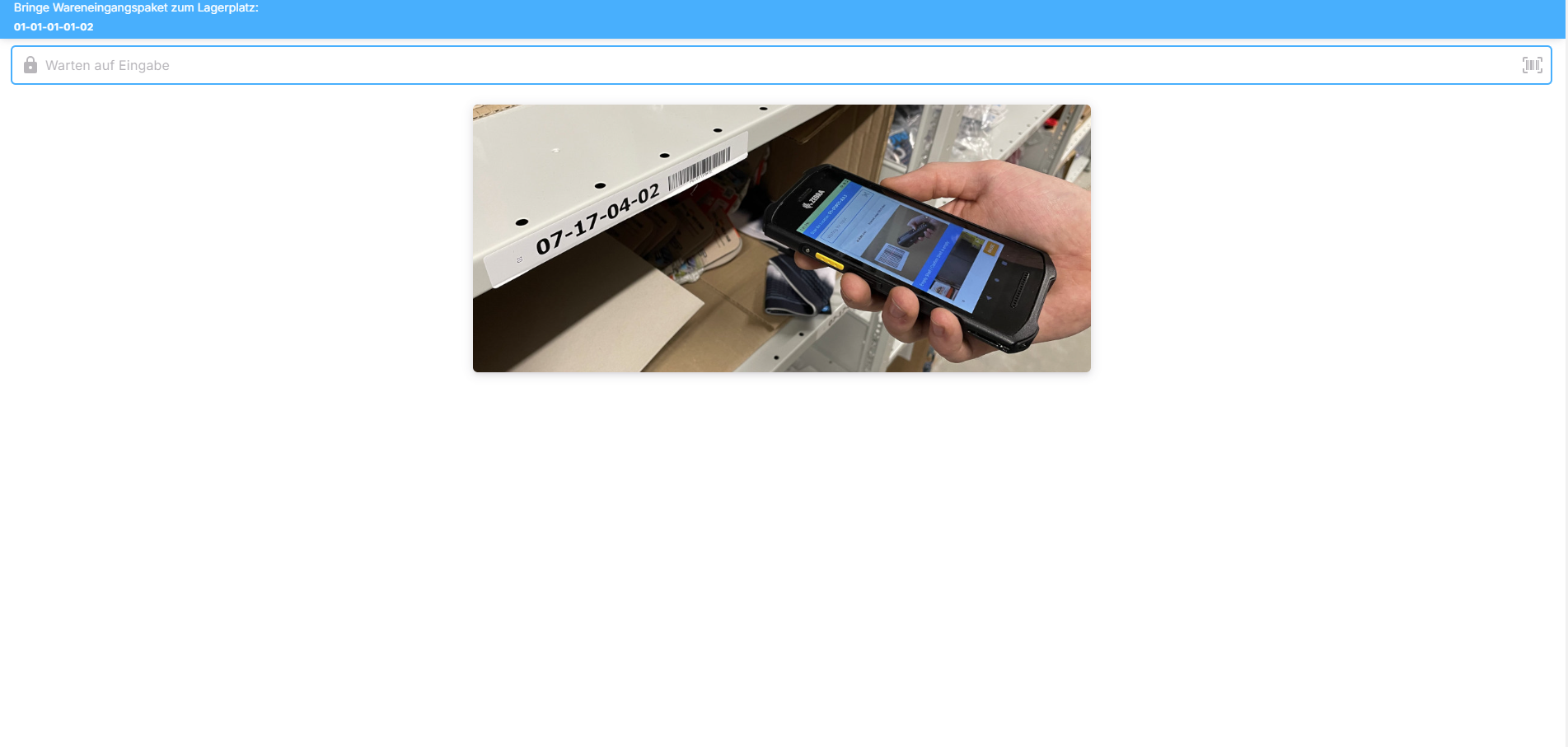
Schritt 5: Wareneingangspaket zum Lagerplatz bringen
Bringen Sie das Paket zum vorgegebenen Lagerplatz, der oben links im blauen Kasten angezeigt wird. Scannen Sie den Lagerplatz.
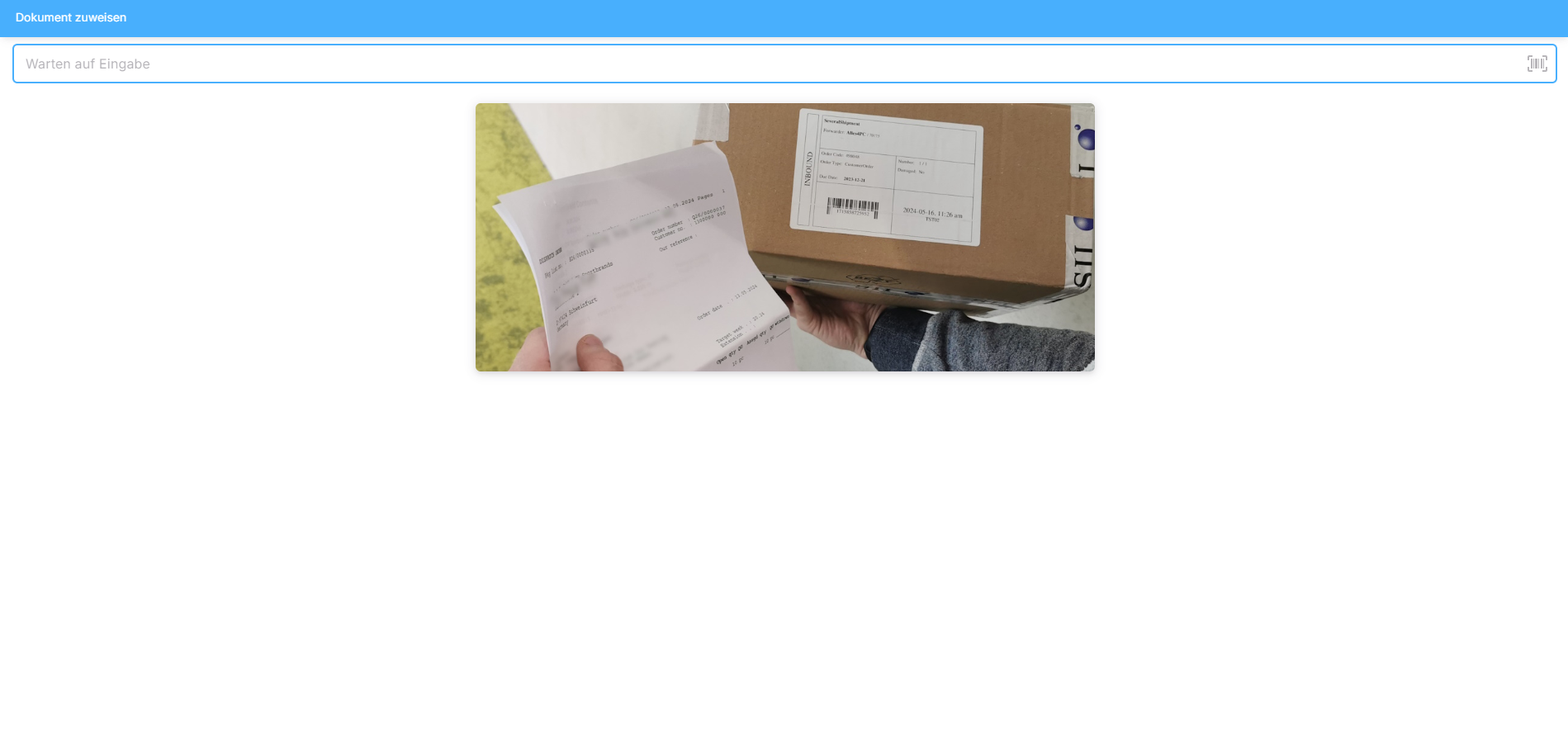
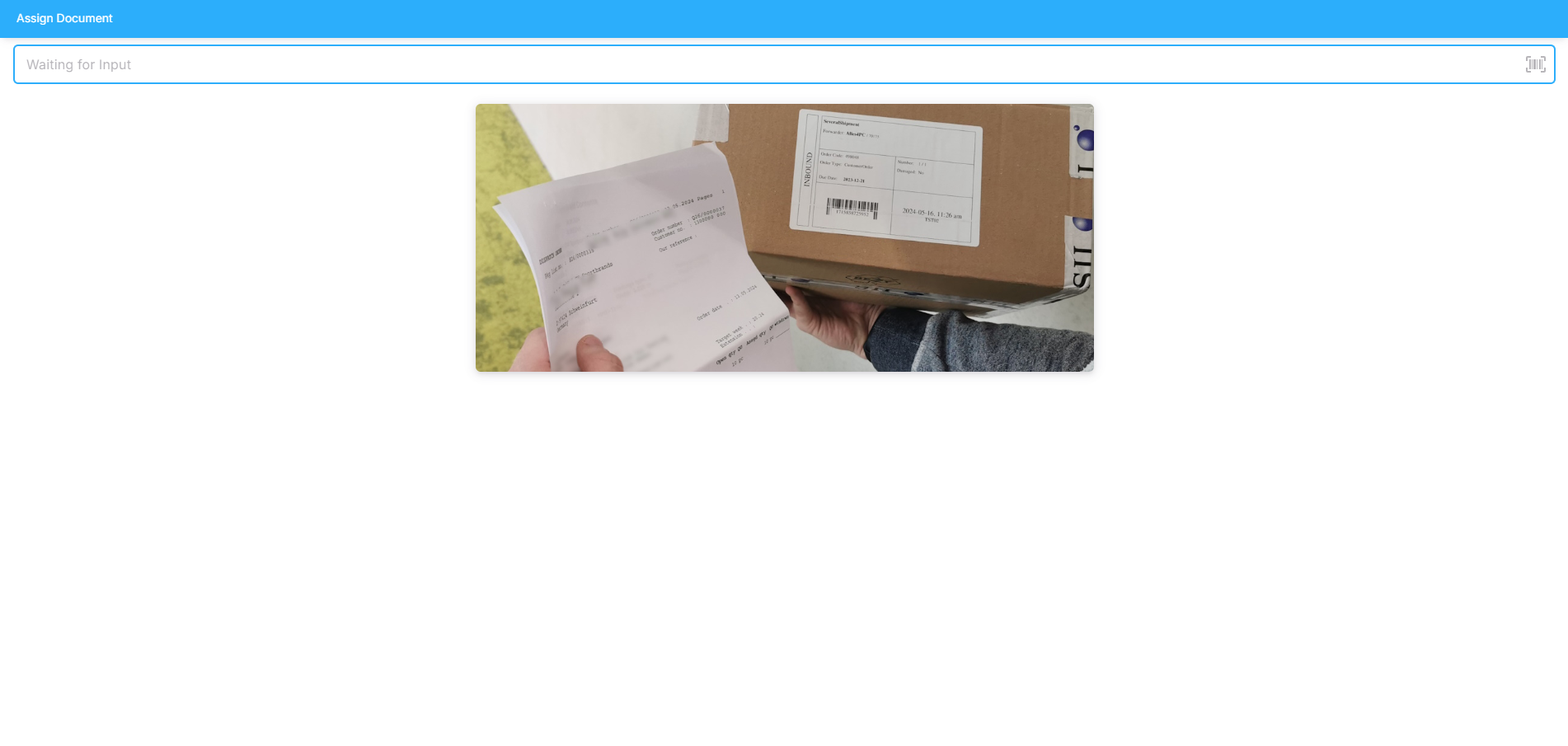
Schritt 6: Dokument zuweisen
Überprüfen Sie, ob das Dokument dem Paket zugehörig ist, und tragen Sie die Kenn-Nummer des Dokuments ein.
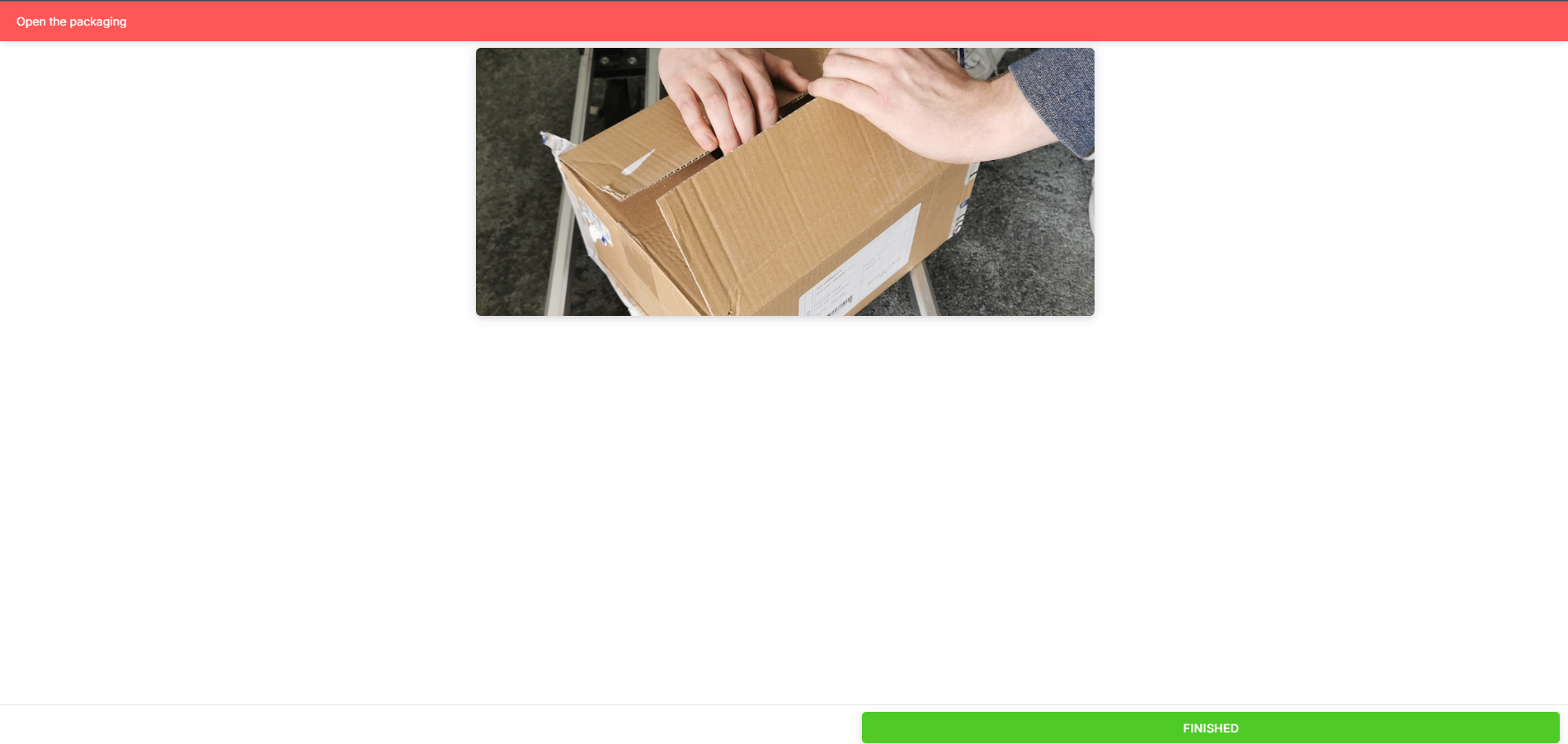
Schritt 7: Verpackung öffnen
Wenn Sie das korrekte Paket vor sich liegen haben, öffnen Sie die Verpackung.

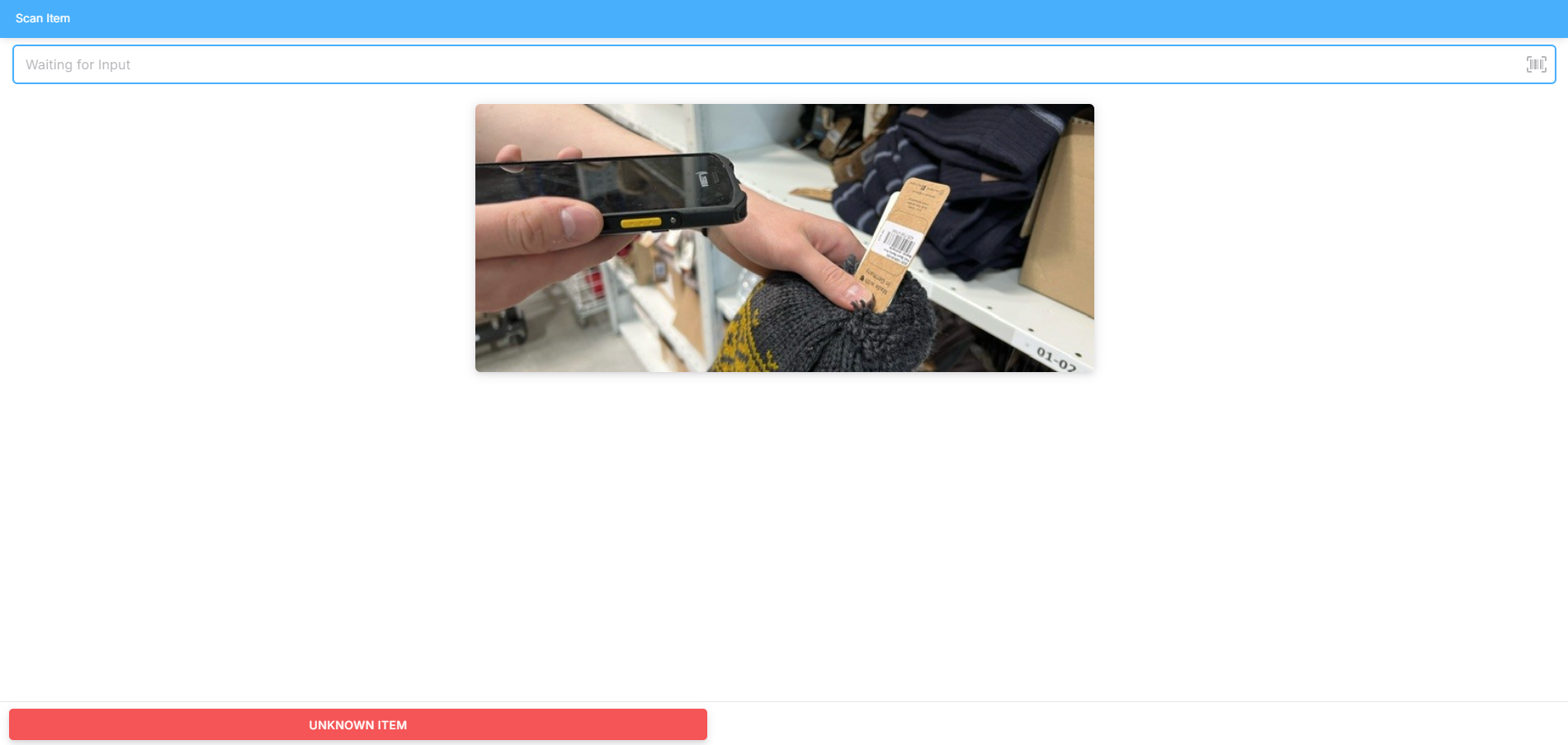
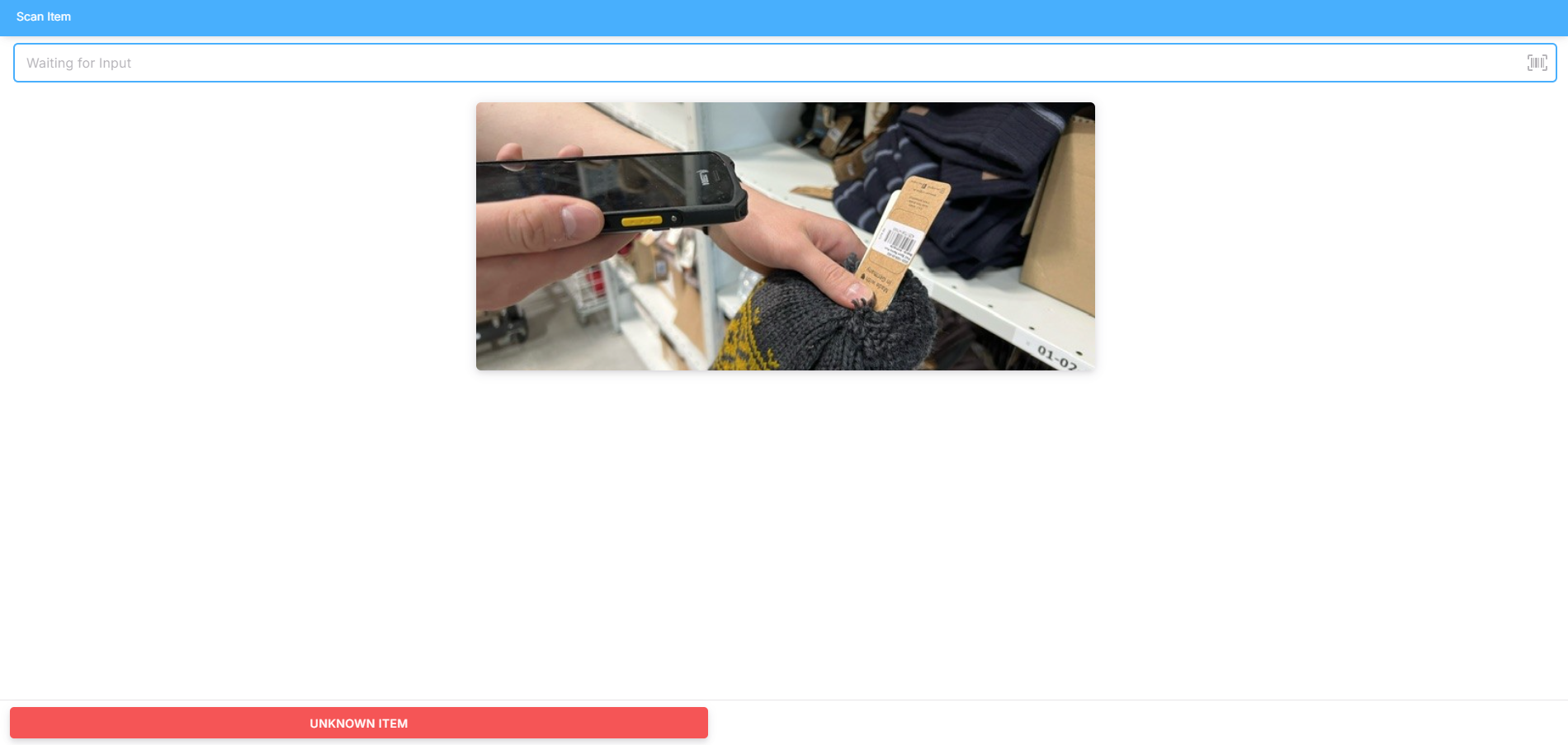
Schritt 8: Artikel scannen
Entnehmen Sie nach und nach die angezeigten Artikel und scannen Sie diese ein. Folgen Sie weiter den Anweisungen der App.
Schritt 9: Identifikator oder Transporthilfsmittel zum Lagerplatz bringen
Nach erfolgreichem Scannen legen Sie die Artikel zurück in die Box und an ihren Lagerplatz. Räumen Sie Ihr Transporthilfsmittel oder Ihren Identifikator wieder auf.
QC+Counting (Quality Control and Counting)
Step 1: Select Order
Select the QC + Counting task from the overview and start the task via the progress menu. 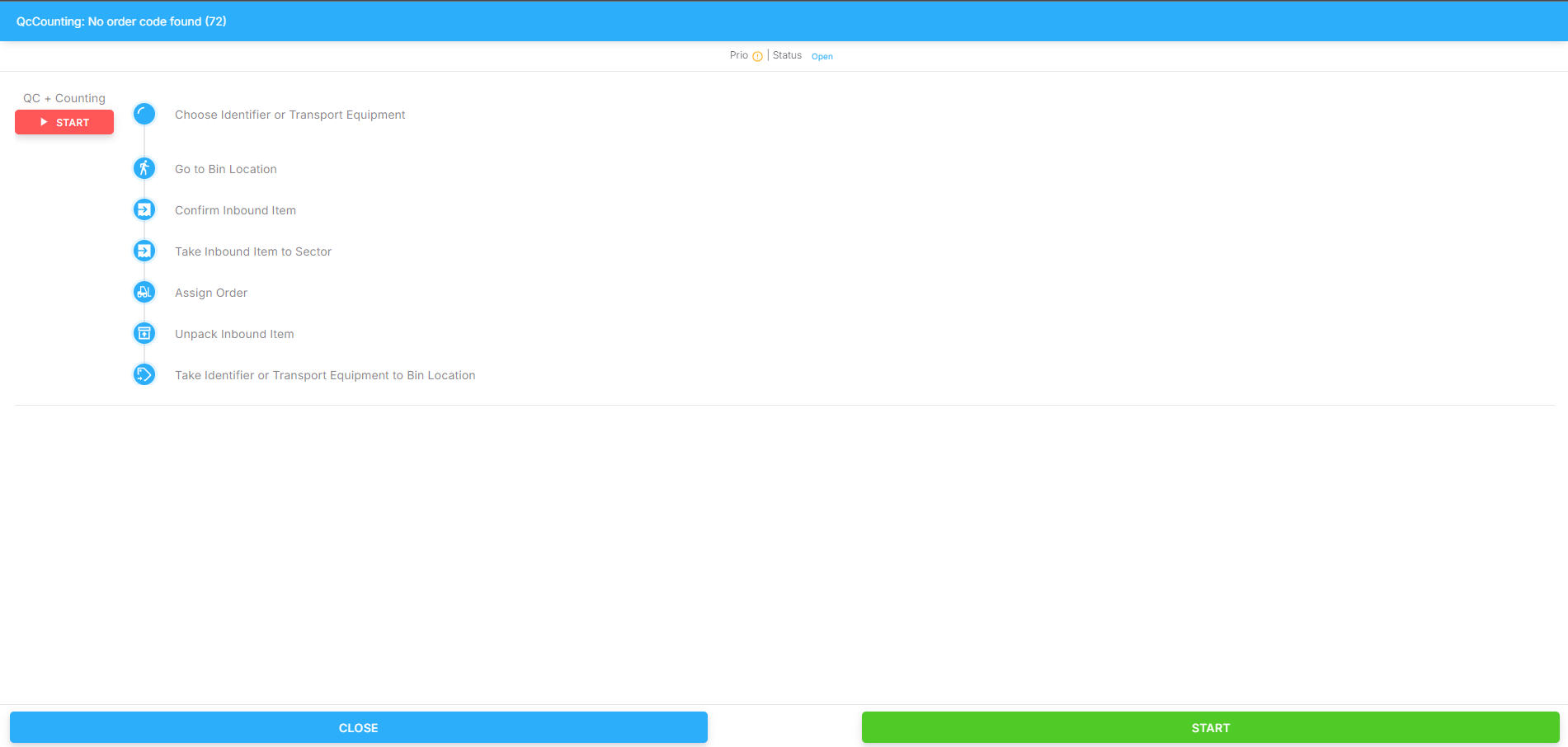
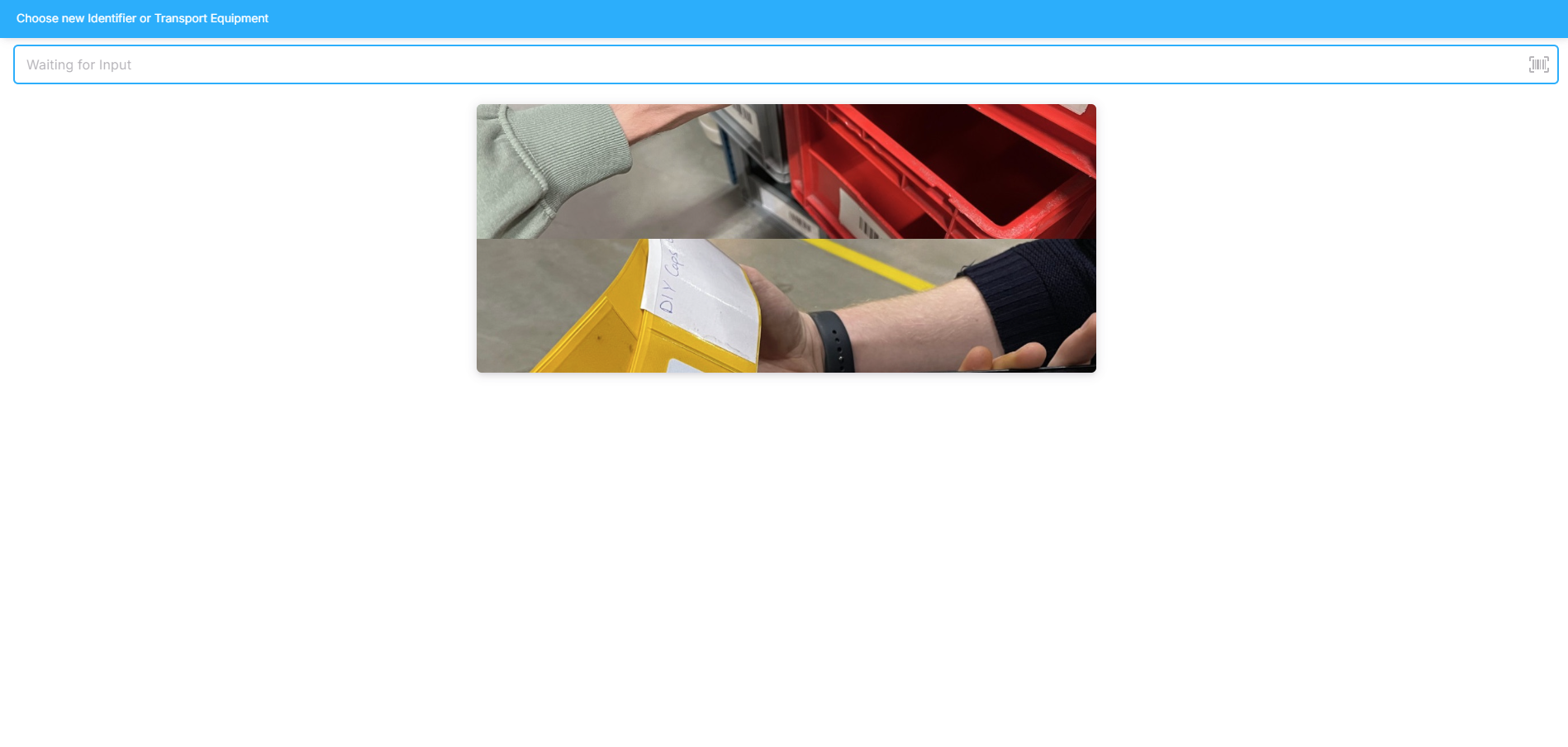
Step 2: Select Identifier/Transport Unit
Select an identifier or transport unit. Scan the barcode or manually enter the identification code.
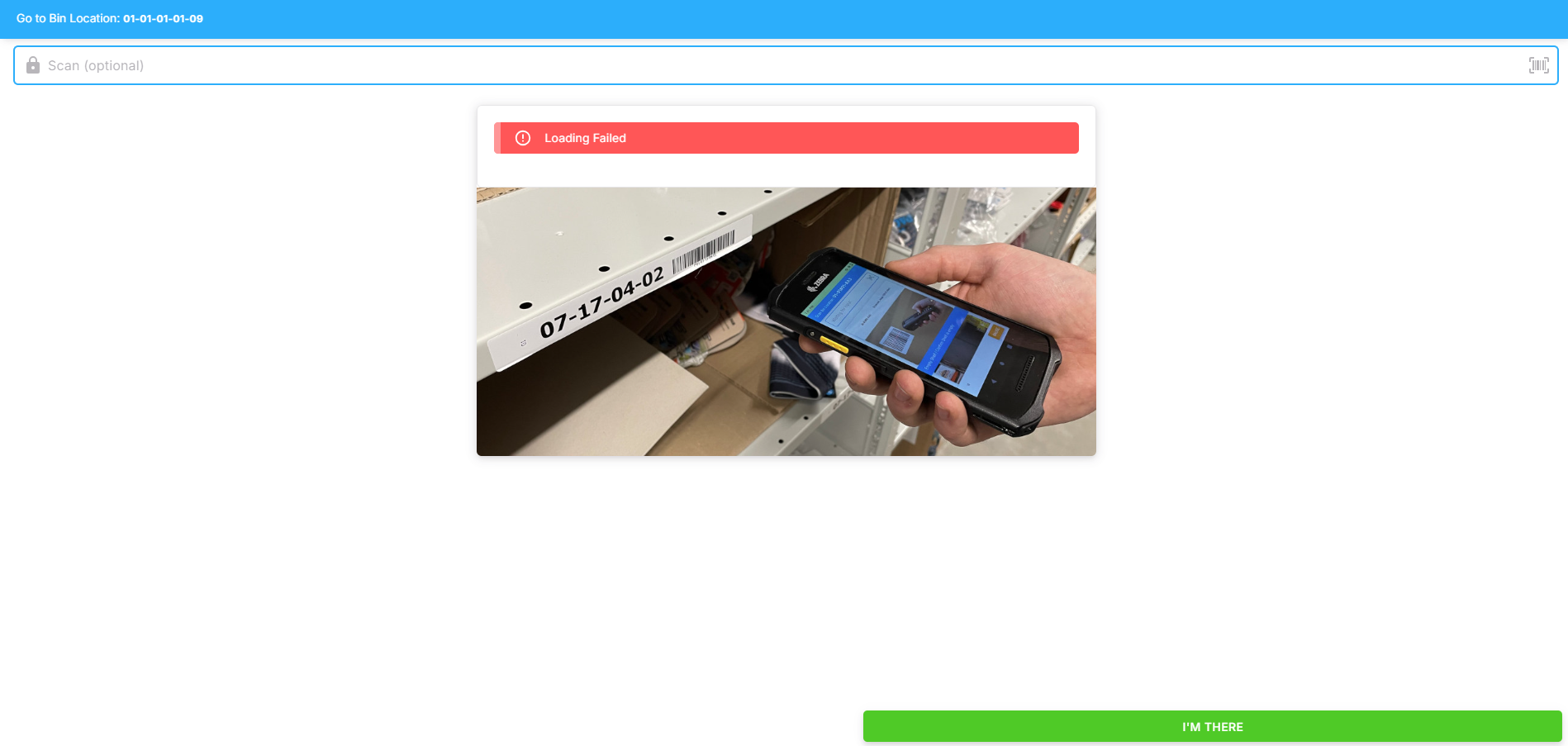
Step 3: Go to Storage Location
Proceed with the transport unit to the storage location and confirm your arrival in the app.
Step 4: Scan Incoming Goods Package
Scan the barcode of the package whose contents are subject to quality control. 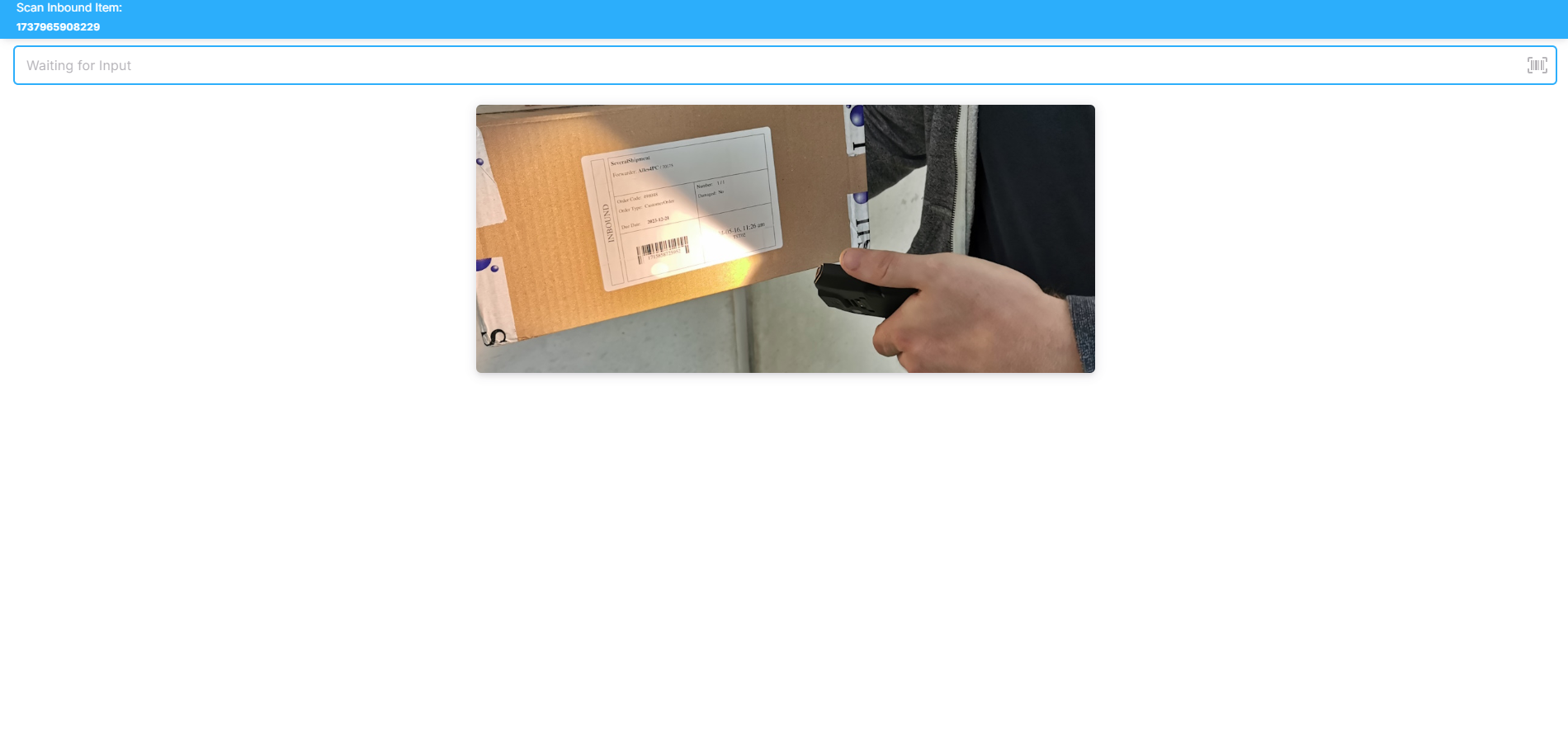
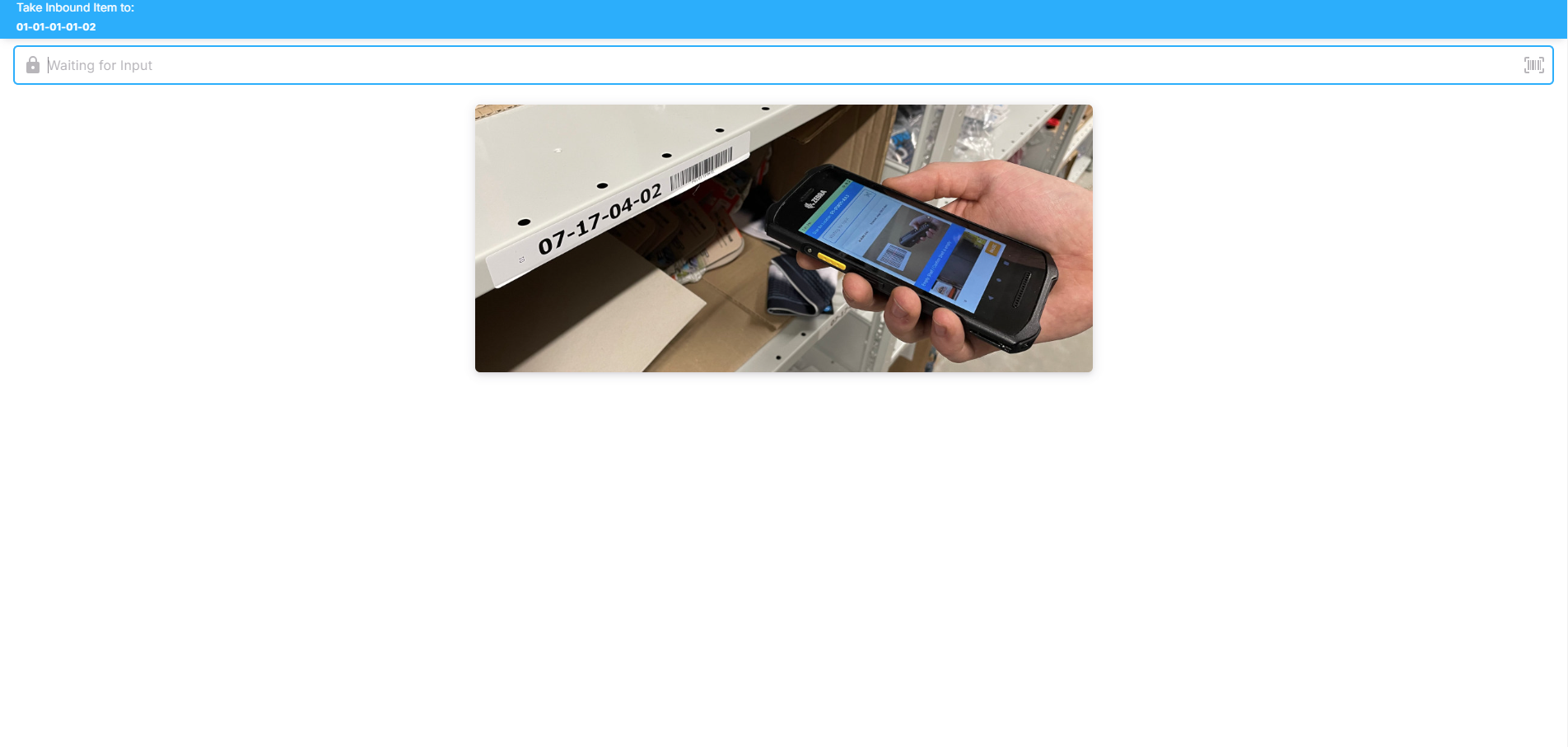
Step 5: Bring Incoming Goods Package to Storage Location
Move the package to the designated storage location displayed in the blue box on the top left. Scan the storage location.
Step 6: Assign Document
Check whether the document belongs to the package and enter the document identification number.
Step 7: Open Packaging
If you have the correct package in front of you, open its packaging.
Step 8: Scan Items
Take out the displayed items one by one and scan them. Follow the instructions in the app.
Step 9: Return Identifier or Transport Unit to Storage Location
After successfully scanning, return the items to the box and place them in their designated storage location. Store the transport unit or identifier properly.