Relocation / Umlagerung
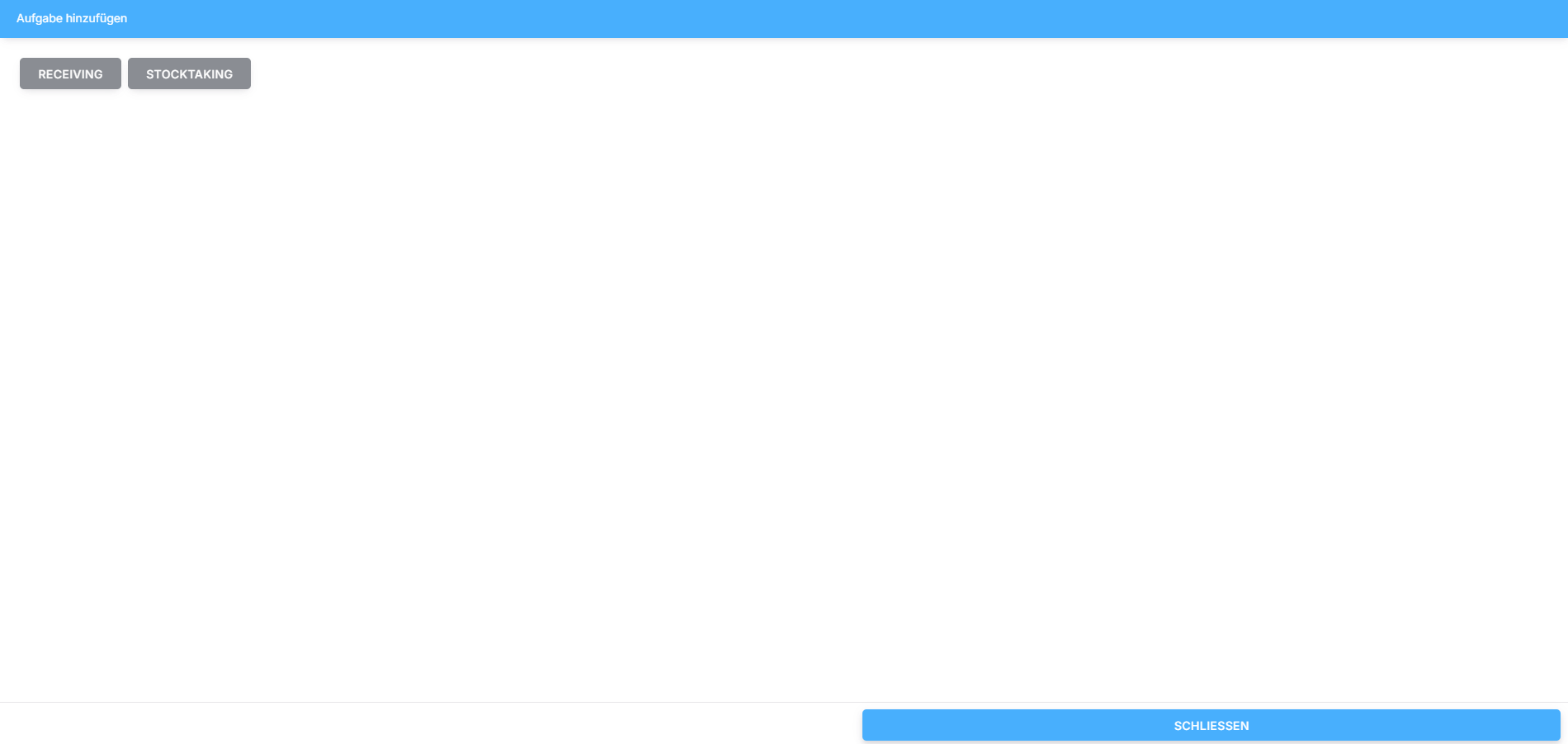
Schritt 1: Aufgabe auswählen
Wählen Sie „Umlagerung“, um einen neuen Umlagerungsauftrag zu erstellen.
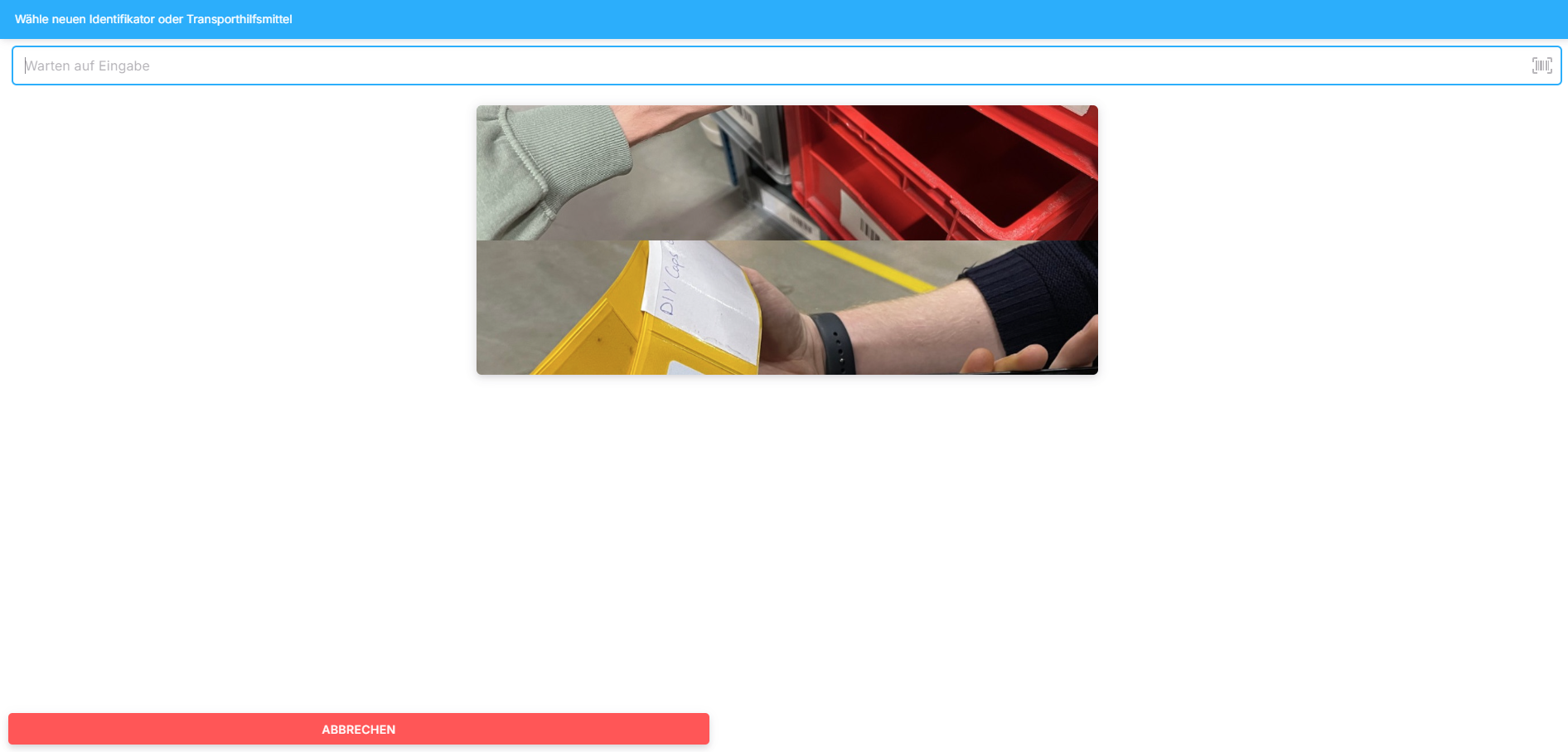
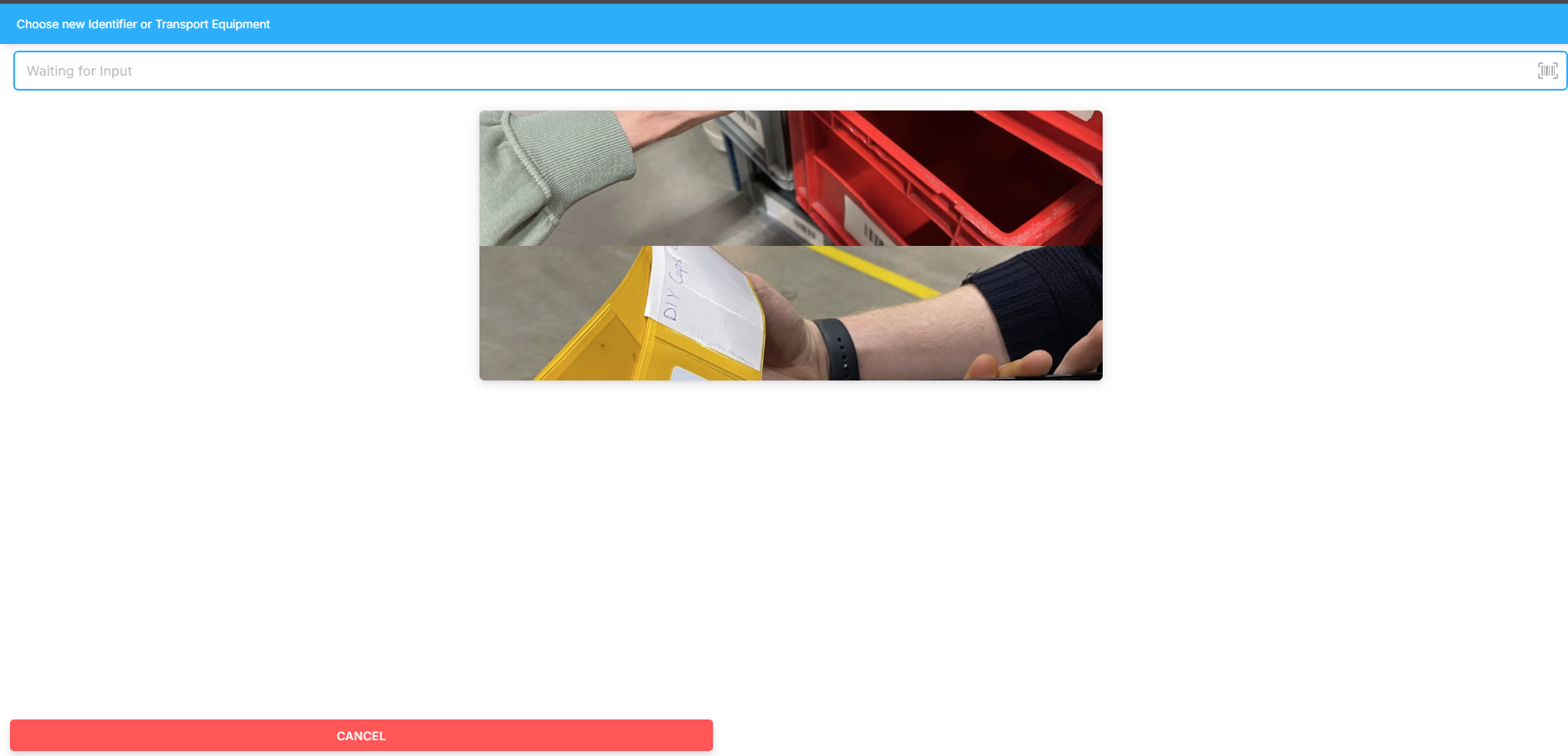
Schritt 2: Identifikator oder Transporthilfsmittel auswählen
Wählen Sie den Identifikator oder ein Transporthilfsmittel aus, mit dem Sie die Umlagerung durchführen möchten.
Falls vorhanden, scannen Sie den Barcode des Transporthilfsmittels.
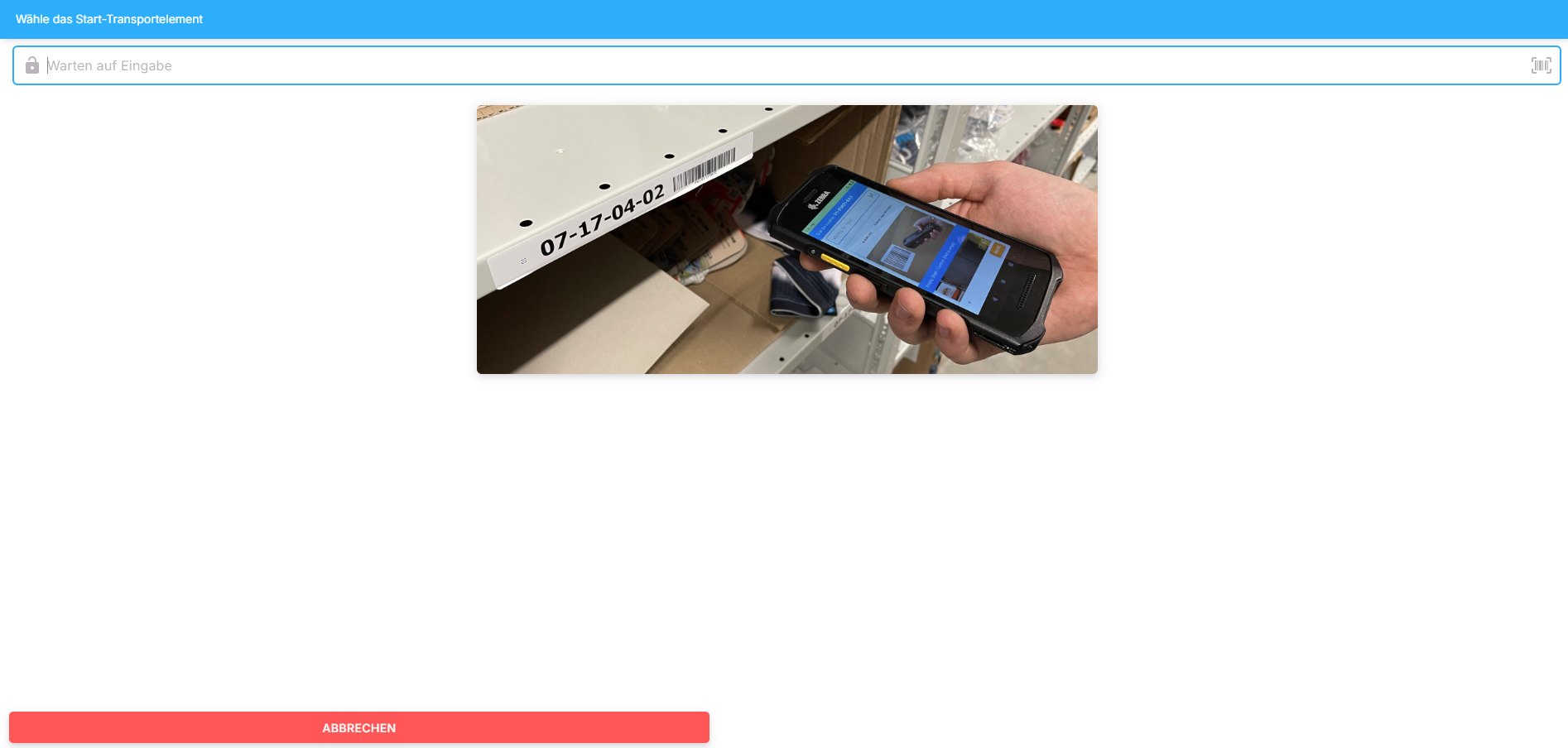
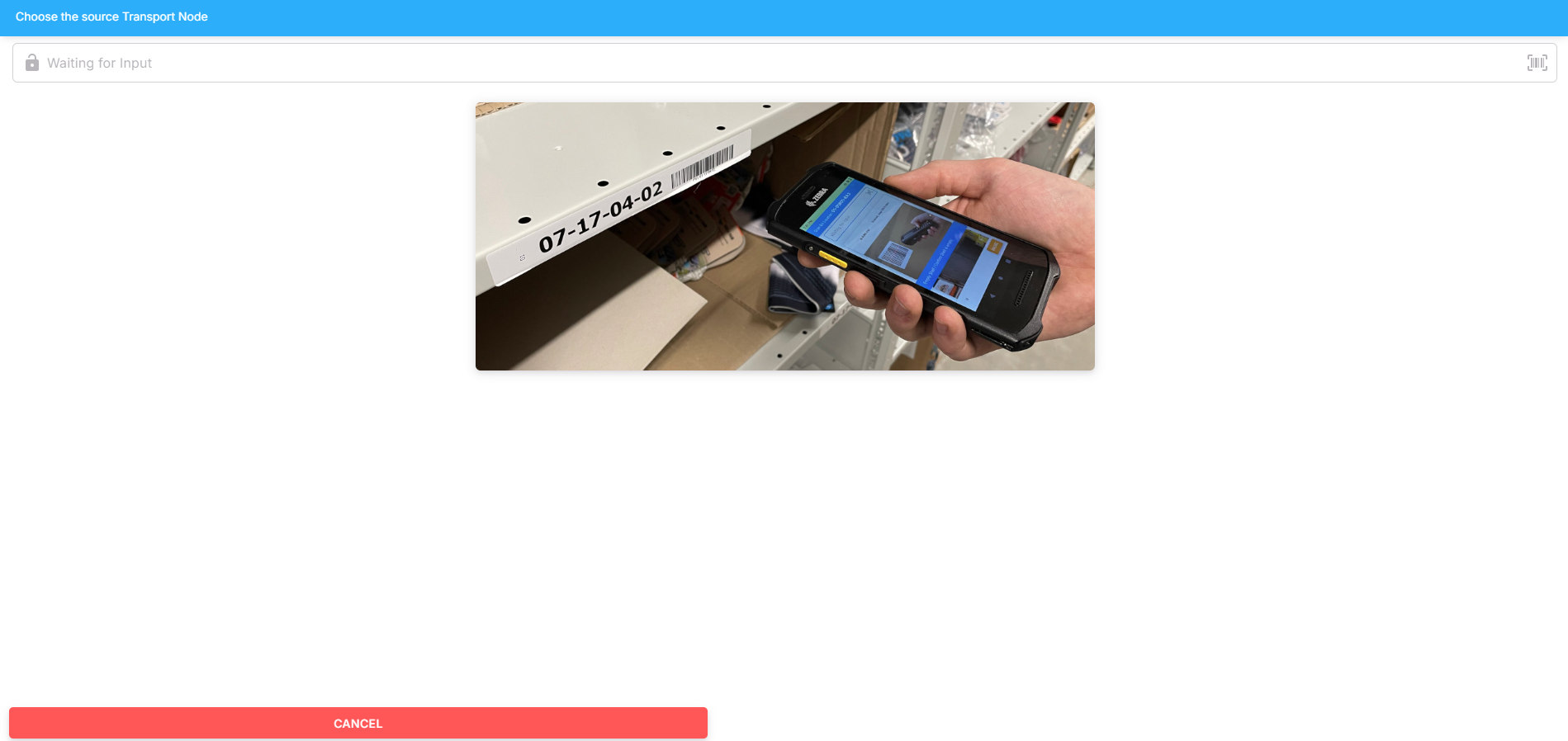
Schritt 3: Start-Lagerplatz auswählen
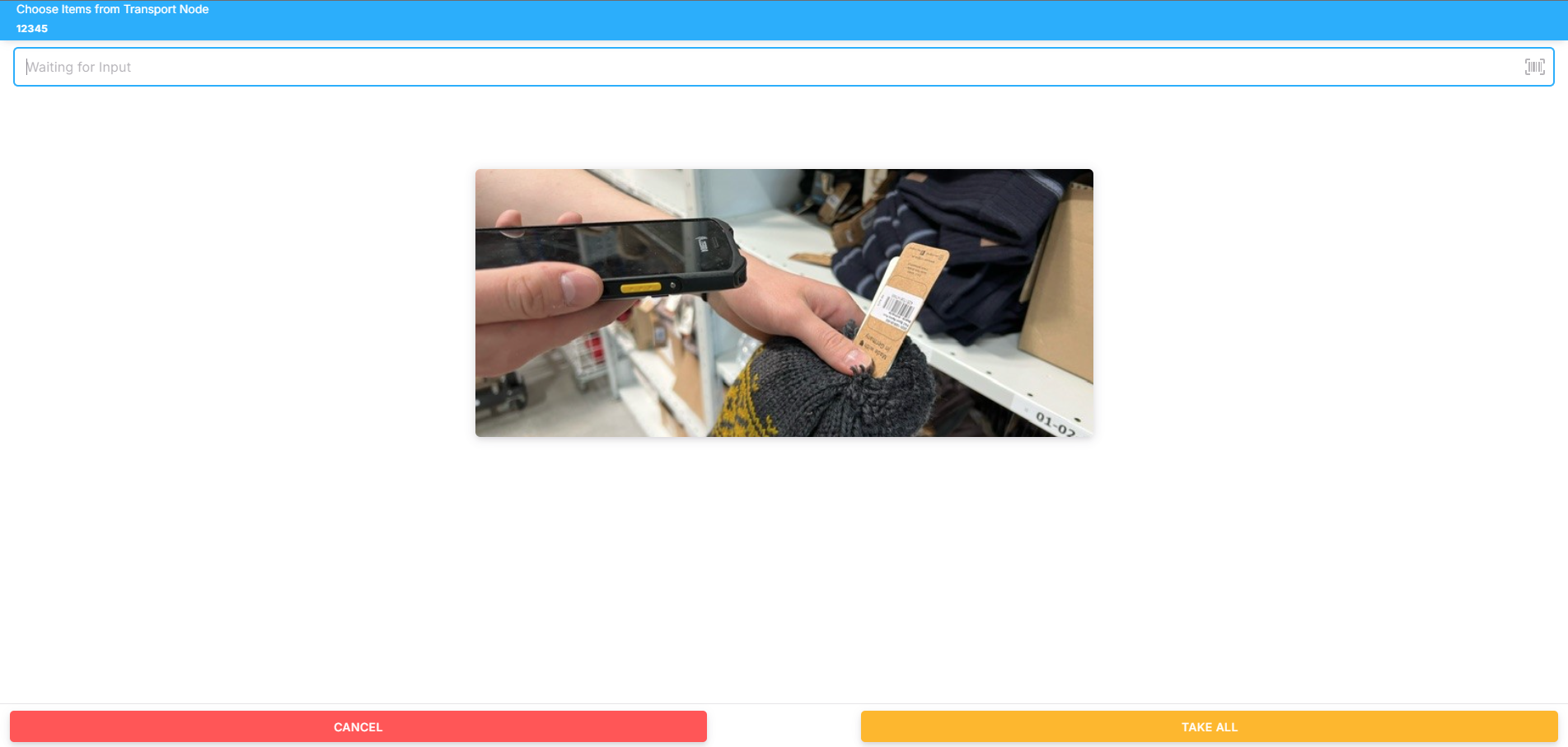
Scannen Sie das Objekt, aus dem Sie die Artikel entnehmen möchten.
Schritt 4: Umzulagernde Artikel entnehmen und scannen
Entnehmen Sie die Artikel aus dem Lagerplatz. Es gibt zwei Optionen:
Scannen Sie die Barcodes der einzelnen Artikel oder geben Sie diese manuell ein.
Klicken Sie auf „Alle wählen“, um alle Artikel des Lagerplatzes zu entnehmen.
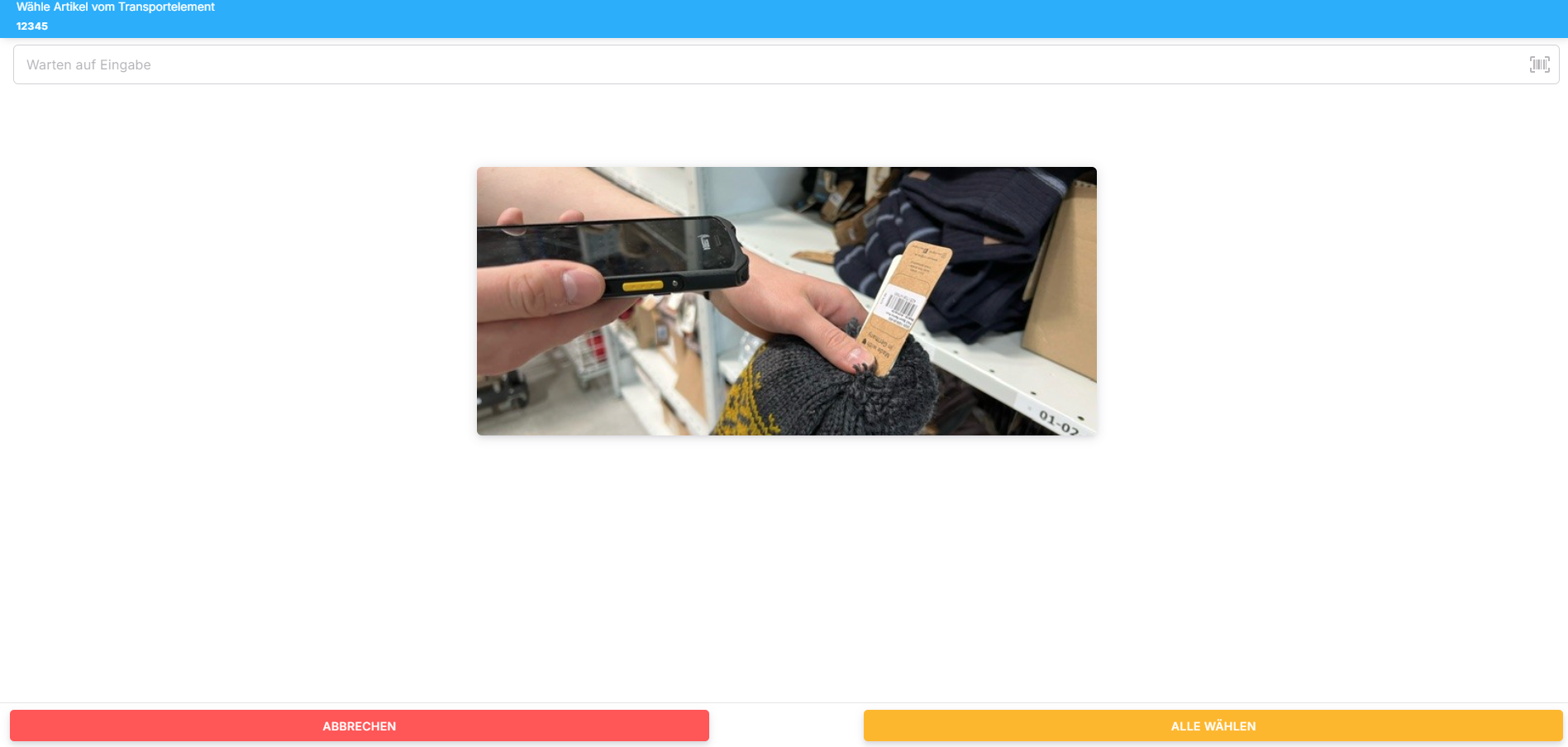
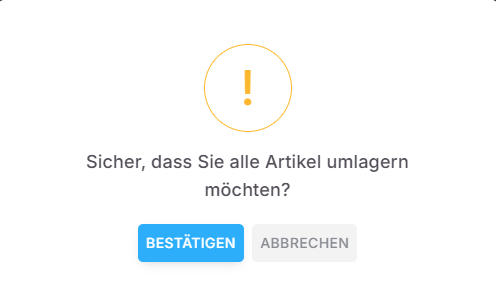
Beachten Sie, dass der Lagerplatz nach der Auswahl von „Alle wählen“ vollständig leer sein muss.
Falls Sie nur einzelne Artikel umlagern möchten, geben Sie die genaue Anzahl der zu verlegenden Artikel ein. 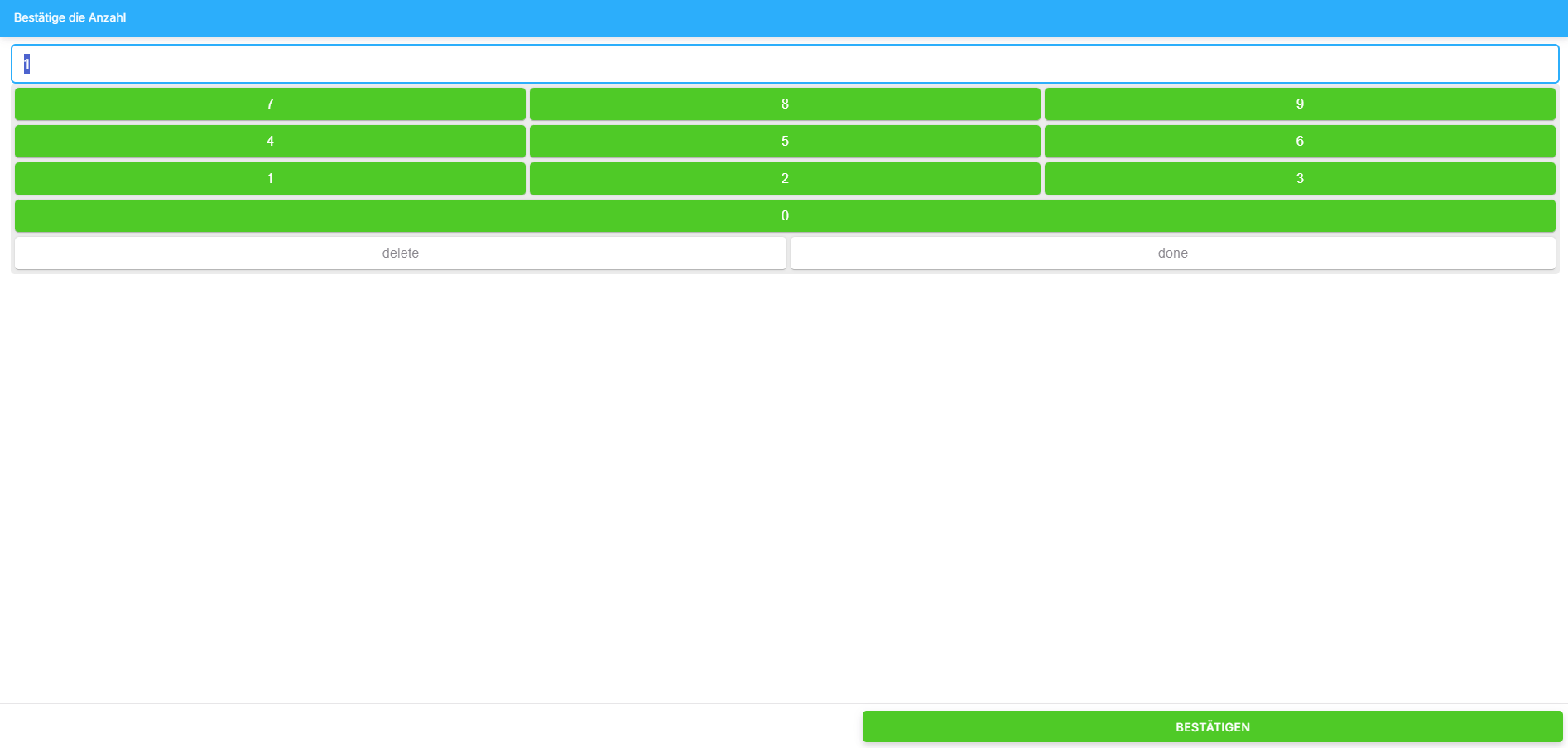
Schritt 5: Ziel-Transportelement wählen
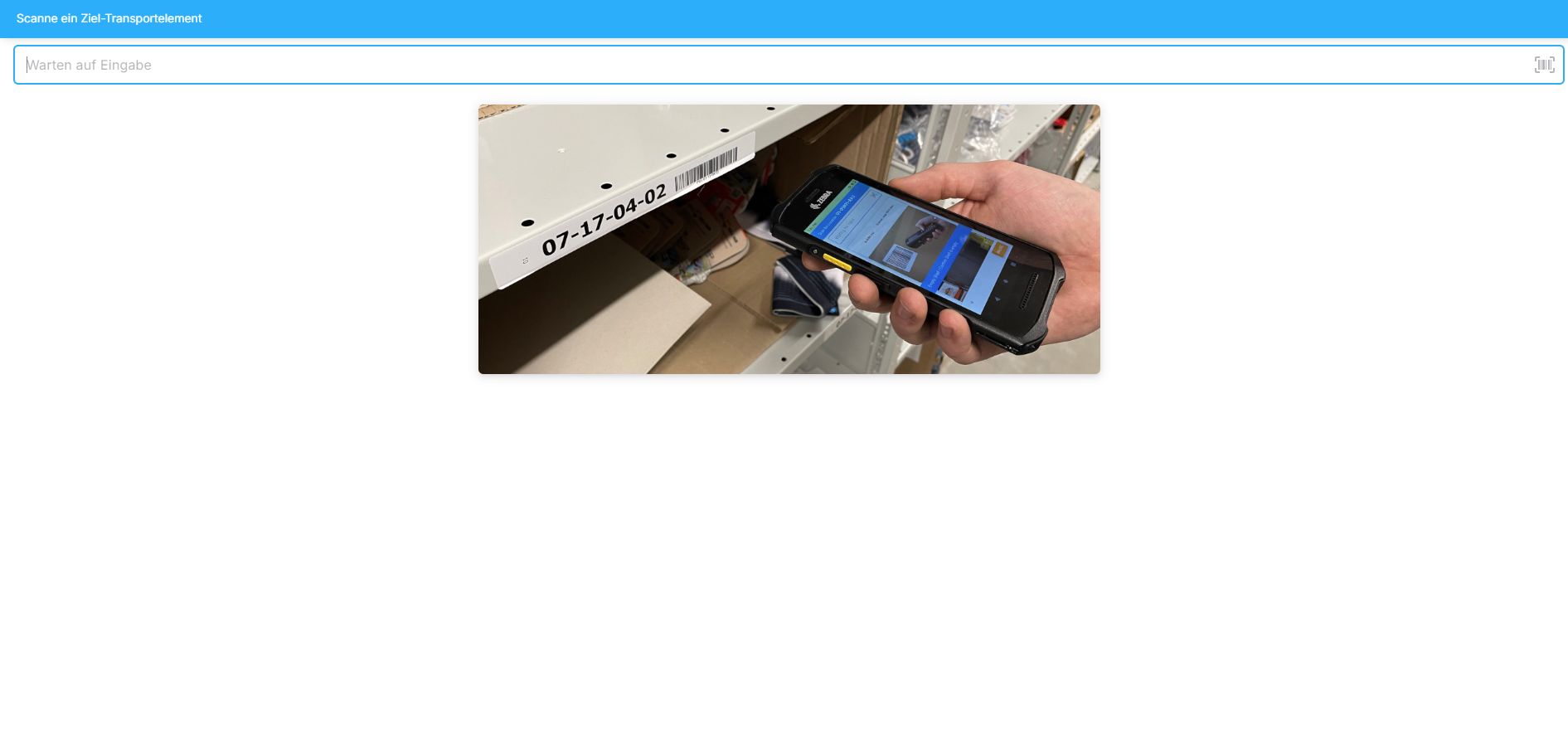
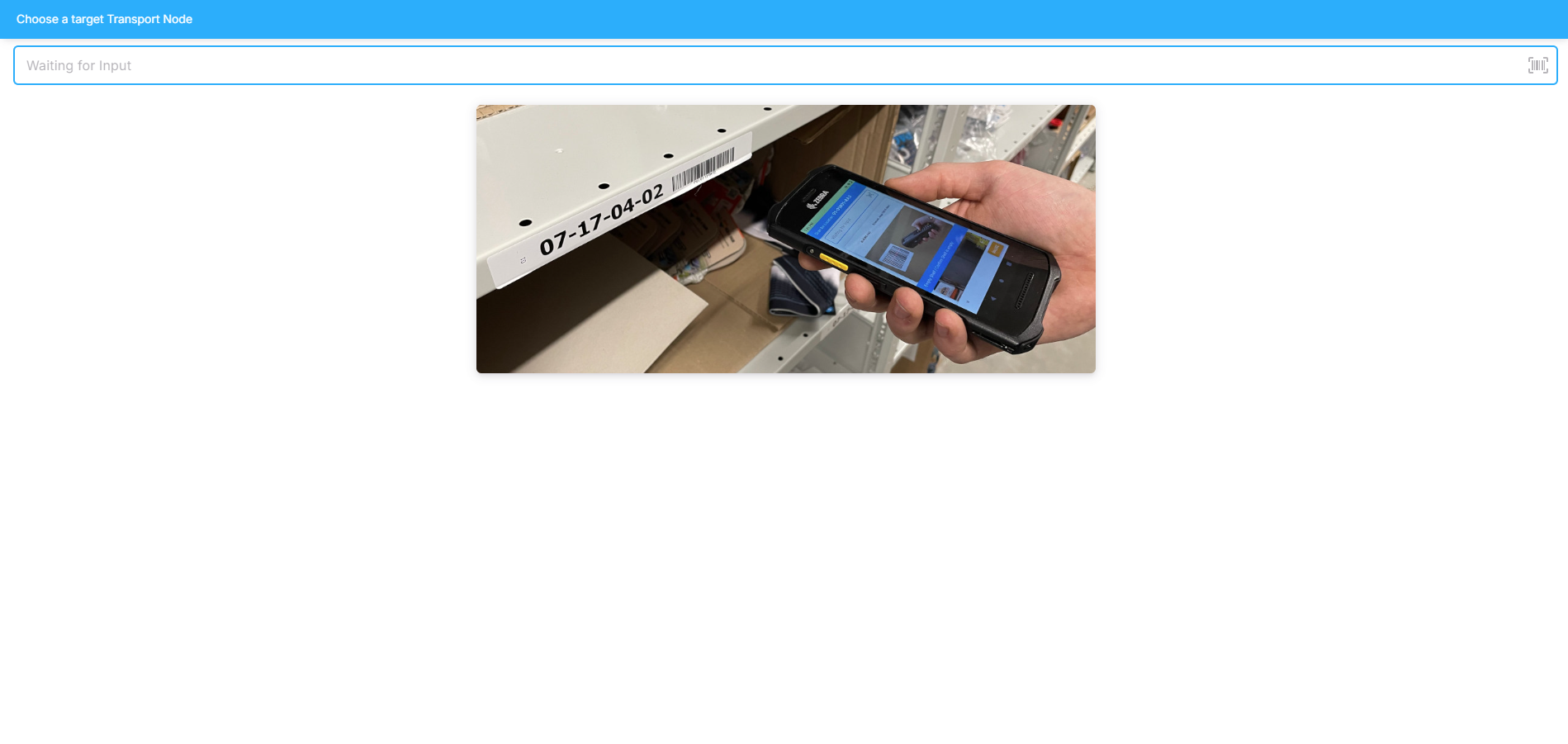
Wählen Sie das Transportelement aus, in das die Artikel umgelagert werden sollen.
Scannen Sie hierfür den Barcode des Ziel-Lagerorts oder geben Sie die Bin-Location-Nummer vom Etikett des Transportmittels ein.
Schritt 6: Einzulagernde Artikel scannen
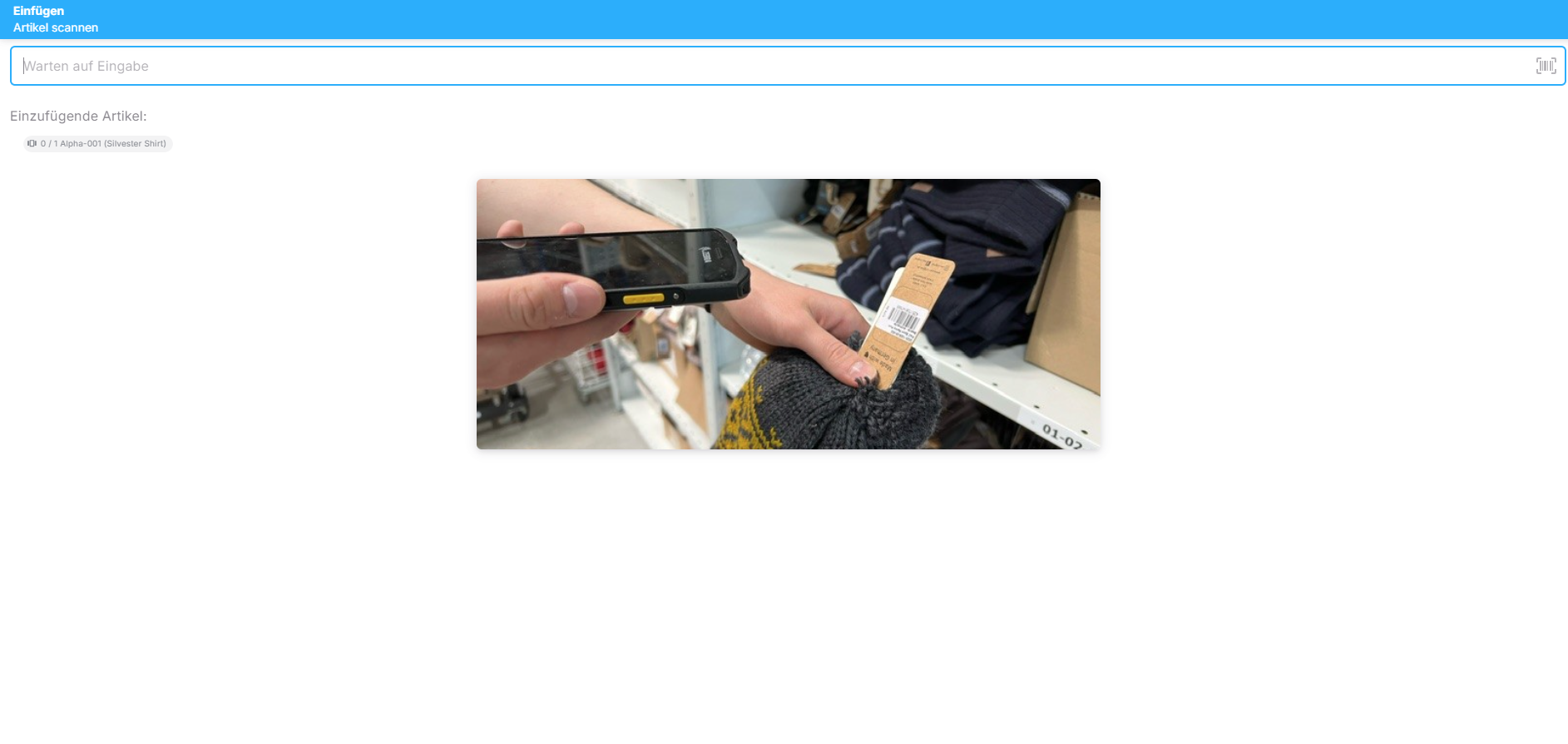
Unter "Einzufügende Artikel" sehen Sie, welche und wie viele Artikel gescannt und eingelagert werden müssen.
Scannen Sie die Artikel und bestätigen Sie die Anzahl in der Zählansicht.
Schritt 7: Anzahl eingeben
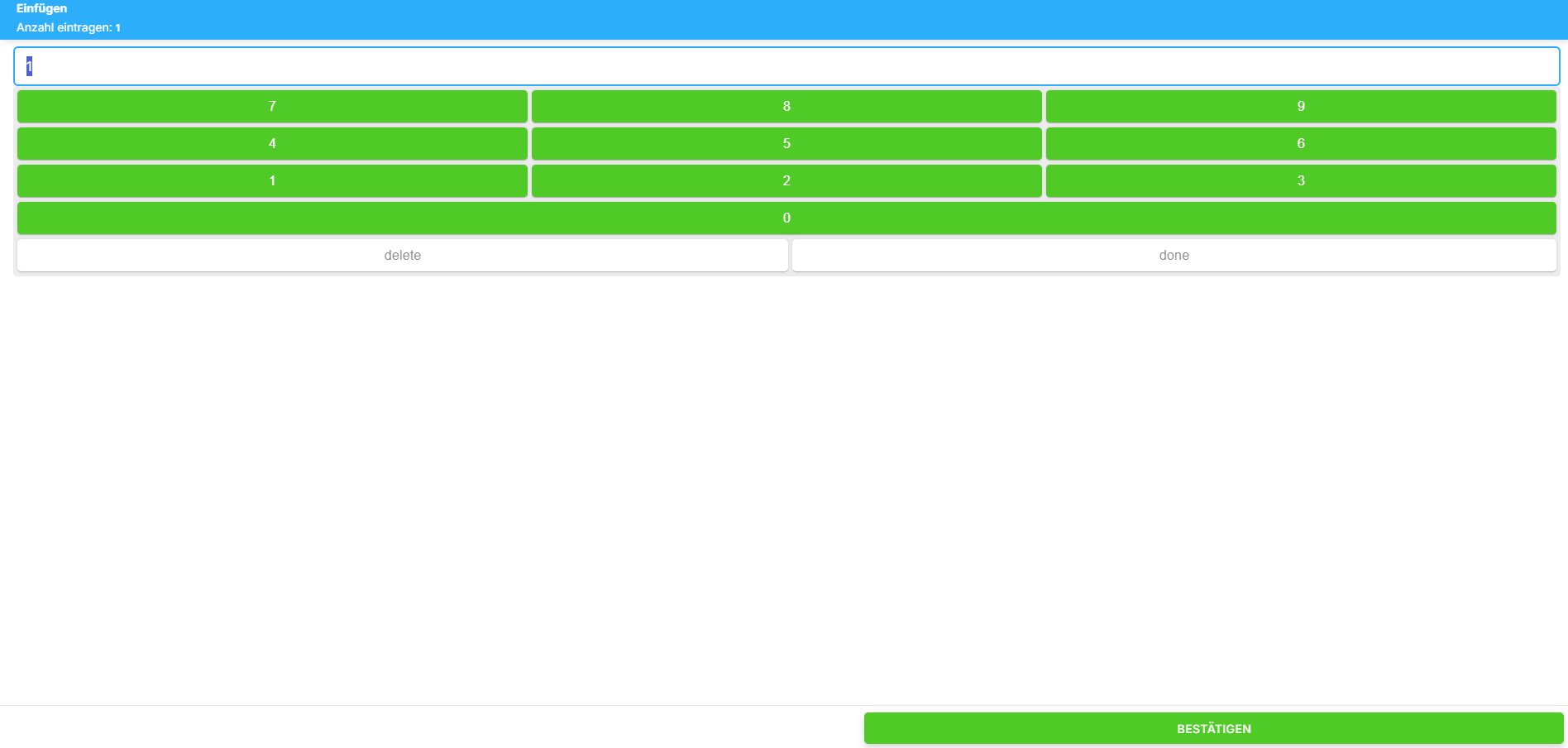
Geben Sie mithilfe des Tastenfelds die genaue Anzahl der Artikel ein, die im blauen Kasten angezeigt wird, um die korrekte Menge zu bestätigen.
Klicken Sie anschließend auf „Hinzufügen“ und lagern Sie die Artikel im neuen Lagerplatz ein.
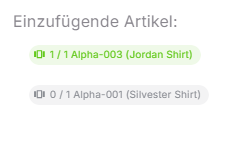
Bereits erfolgreich umgelagerte Artikel werden in der Scan-Übersicht grün markiert.
Fahren Sie fort, indem Sie die restlichen Artikel scannen und einlagern.
Schritt 8: Genutztes Equipment zurückbringen
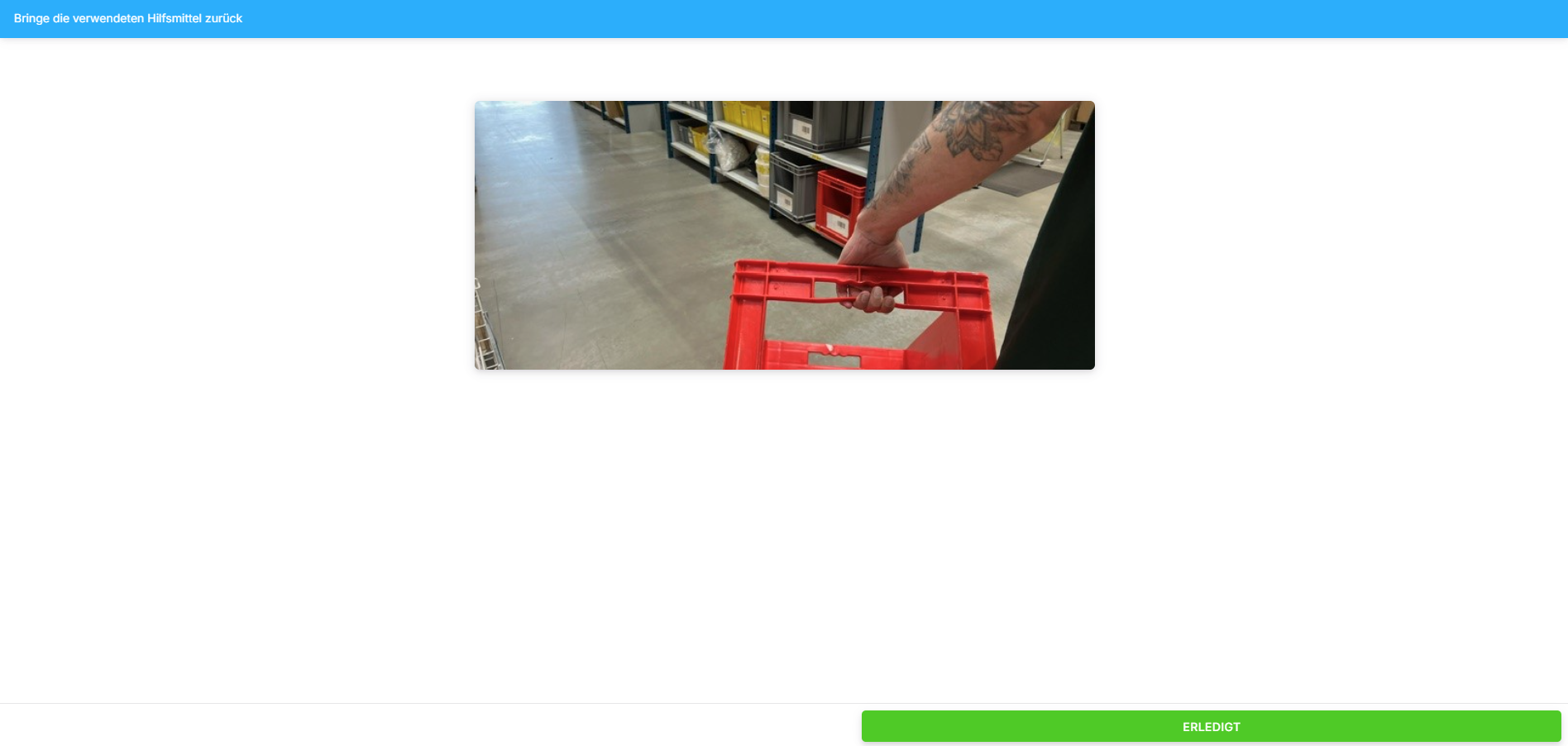
Räumen Sie alle verwendeten Hilfsmittel an ihren vorgesehenen Platz zurück.
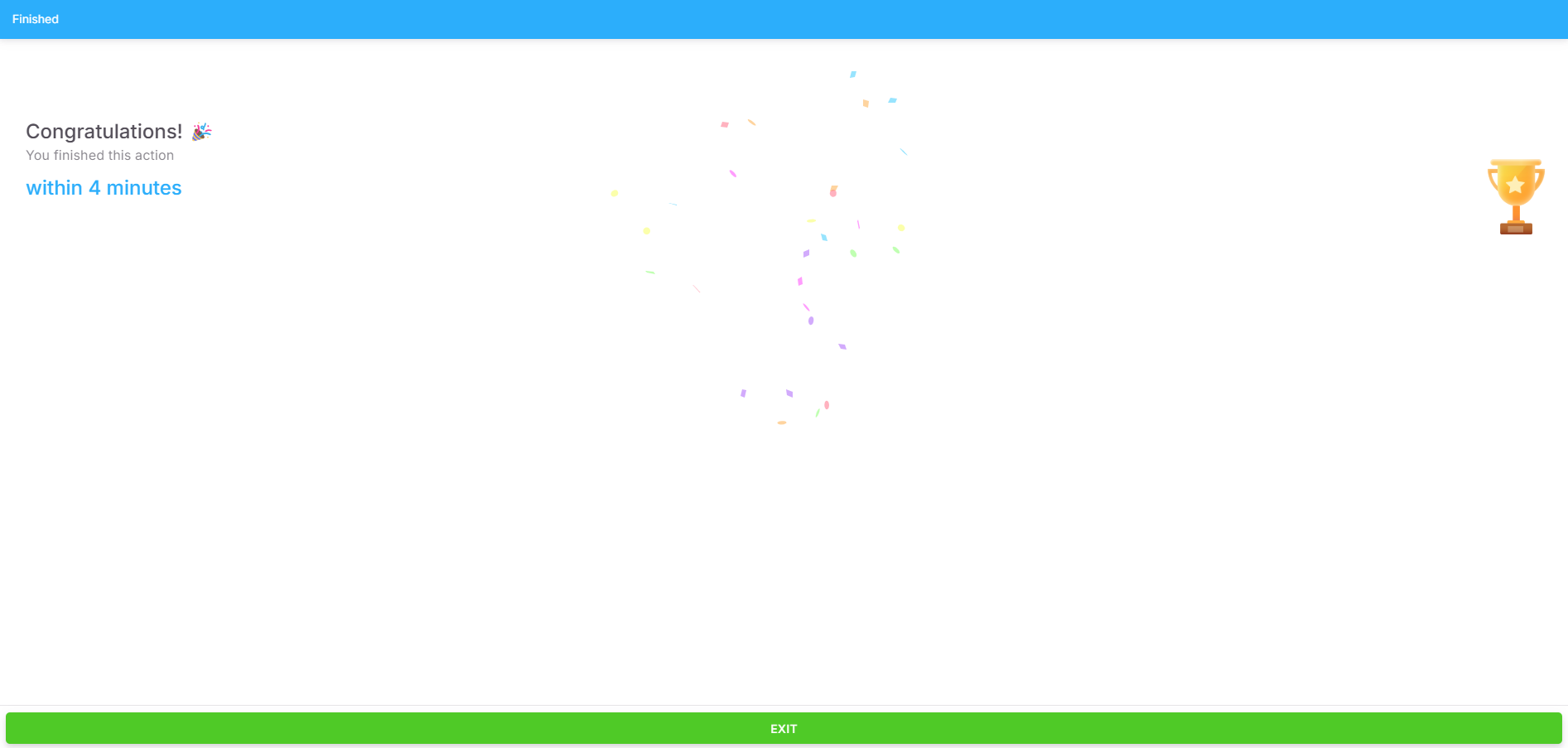
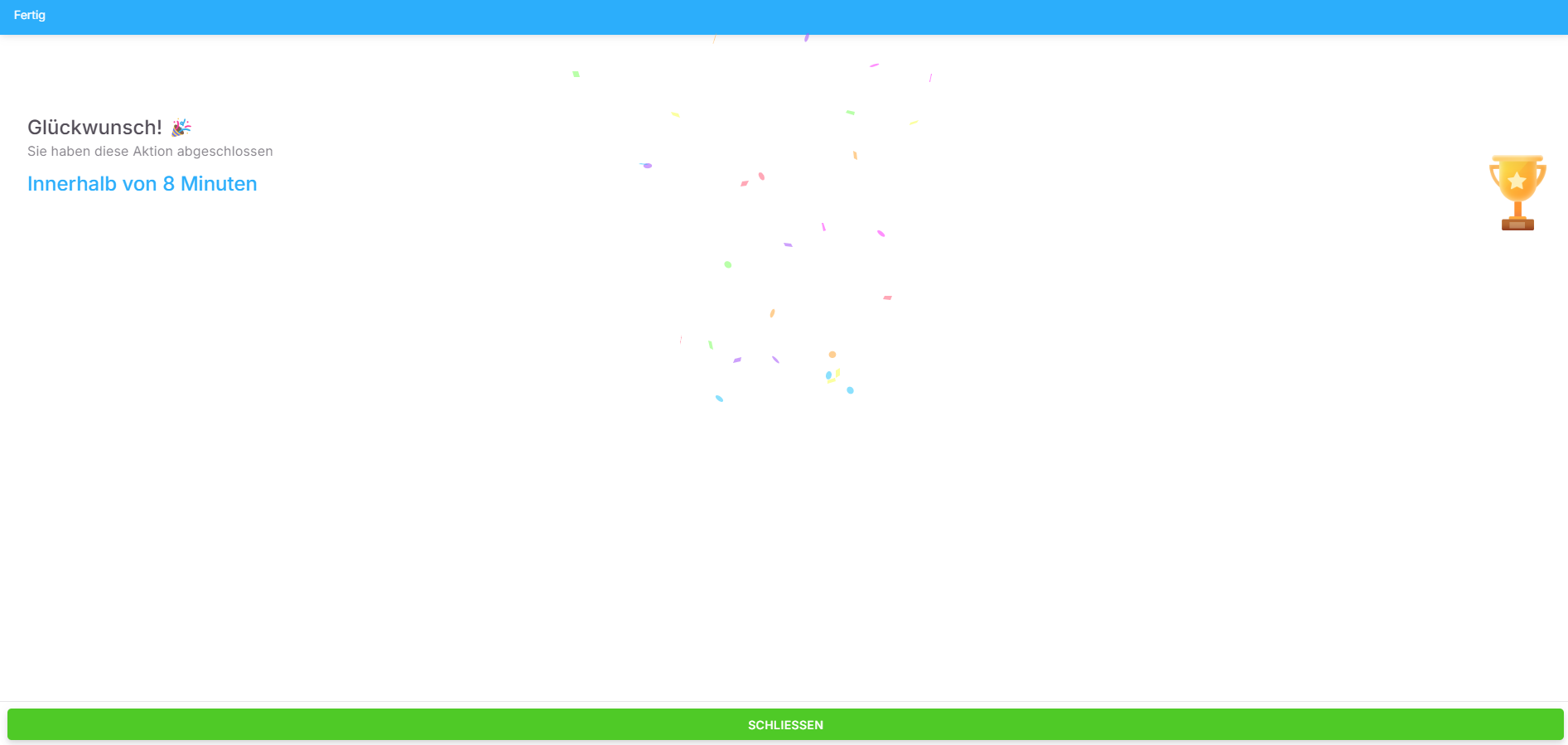
Abschluss der Umlagerung
Die Umlagerung der ausgewählten Lagerplätze wurde erfolgreich abgeschlossen.
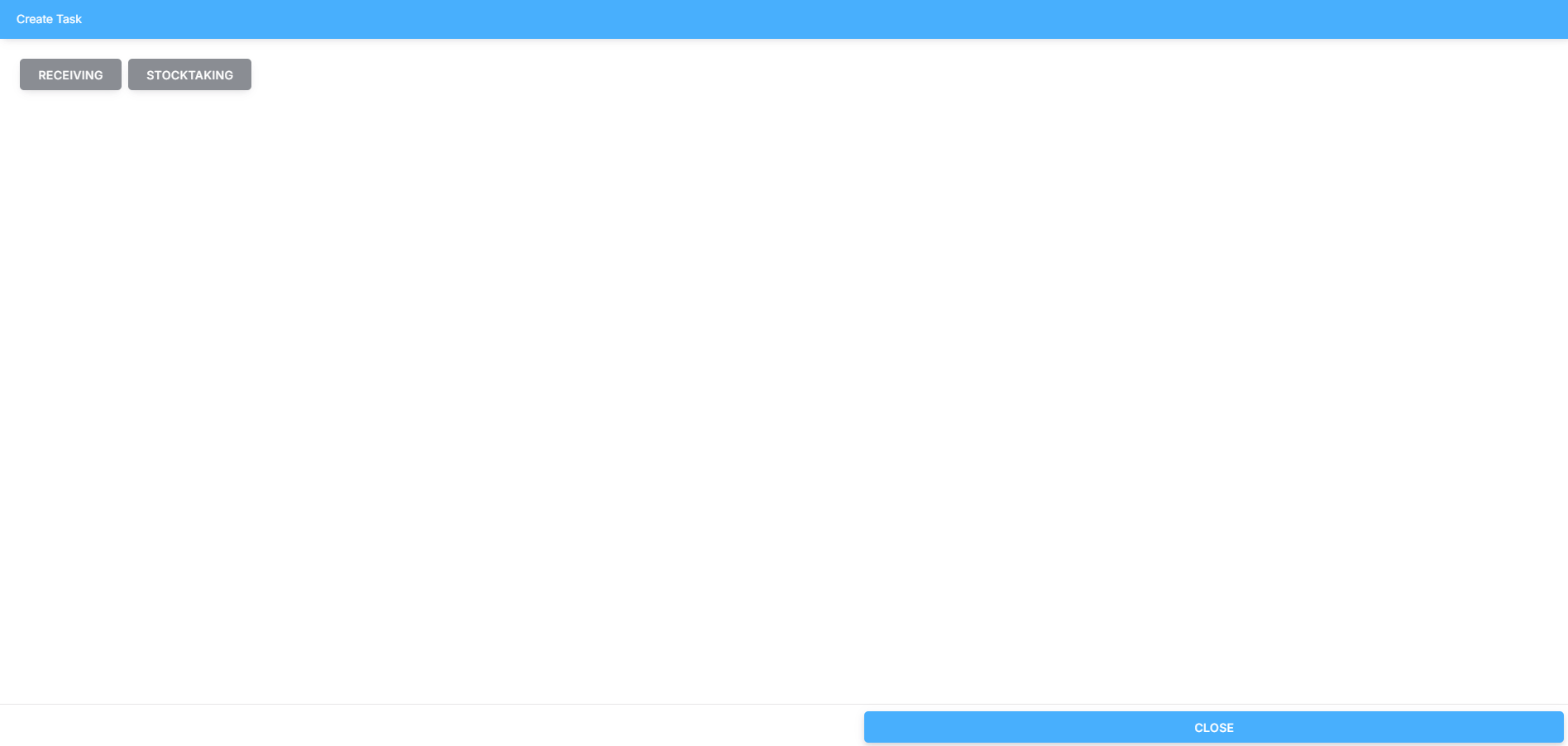
Step 1: Select Task
Select "Relocation" to create a new relocation task.
Step 2: Select Identifier or Transport Equipment
Choose the identifier or transport equipment you will use for the relocation.
If available, scan the barcode of the transport equipment.
Step 3: Select Source Location
Scan the source location or object from which you will retrieve the items.
Step 4: Retrieve and Scan Items for Relocation
Retrieve the items from the source location. You have two options:
Scan the barcodes of individual items or manually enter their details.
Click "Take All" to retrieve all items from the source location.
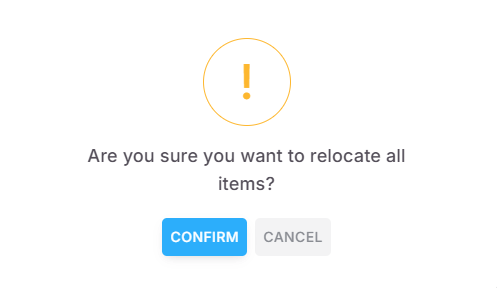
Ensure the source location is completely emptied when selecting "Take All".
If relocating specific items only, enter the exact quantity to be transferred. 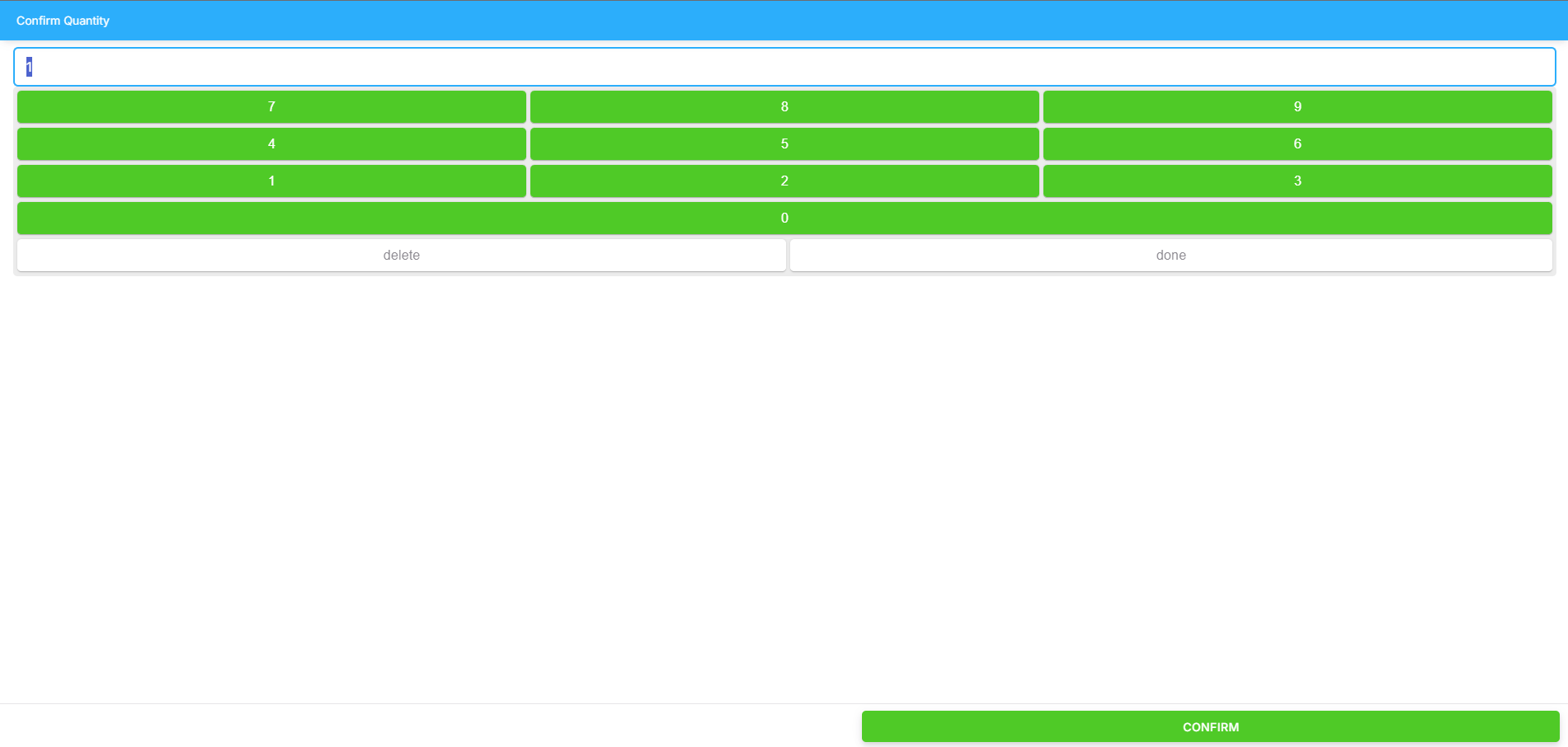
Step 5: Select Destination Location
Choose the destination location for the items.
Scan the barcode of the destination or manually enter the Bin-Location Number from the label.
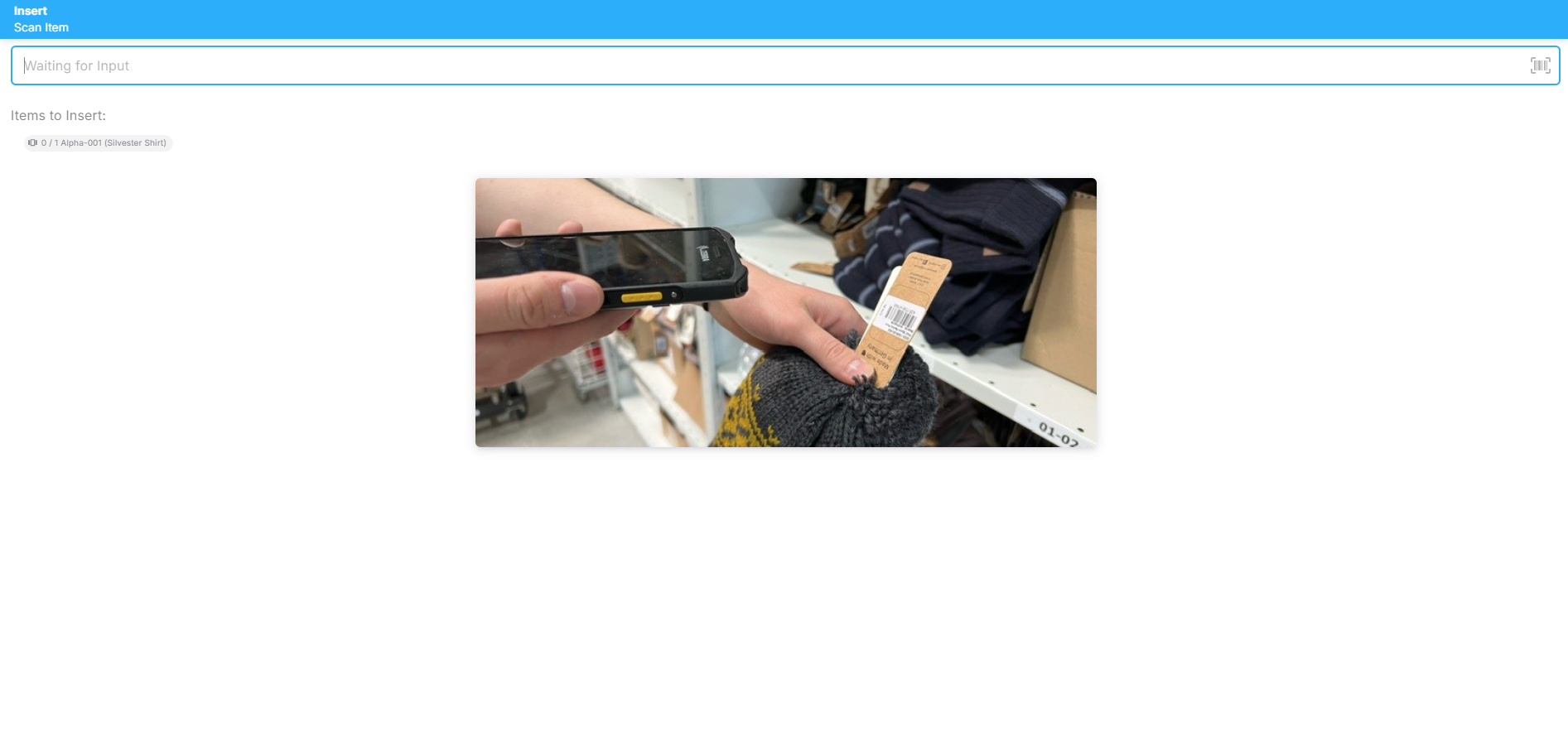
Step 6: Scan Items for Storage
Under "Items to be Stored", you will see the exact items and quantities that need to be scanned and stored.
Scan the items and confirm the quantity using the input view.
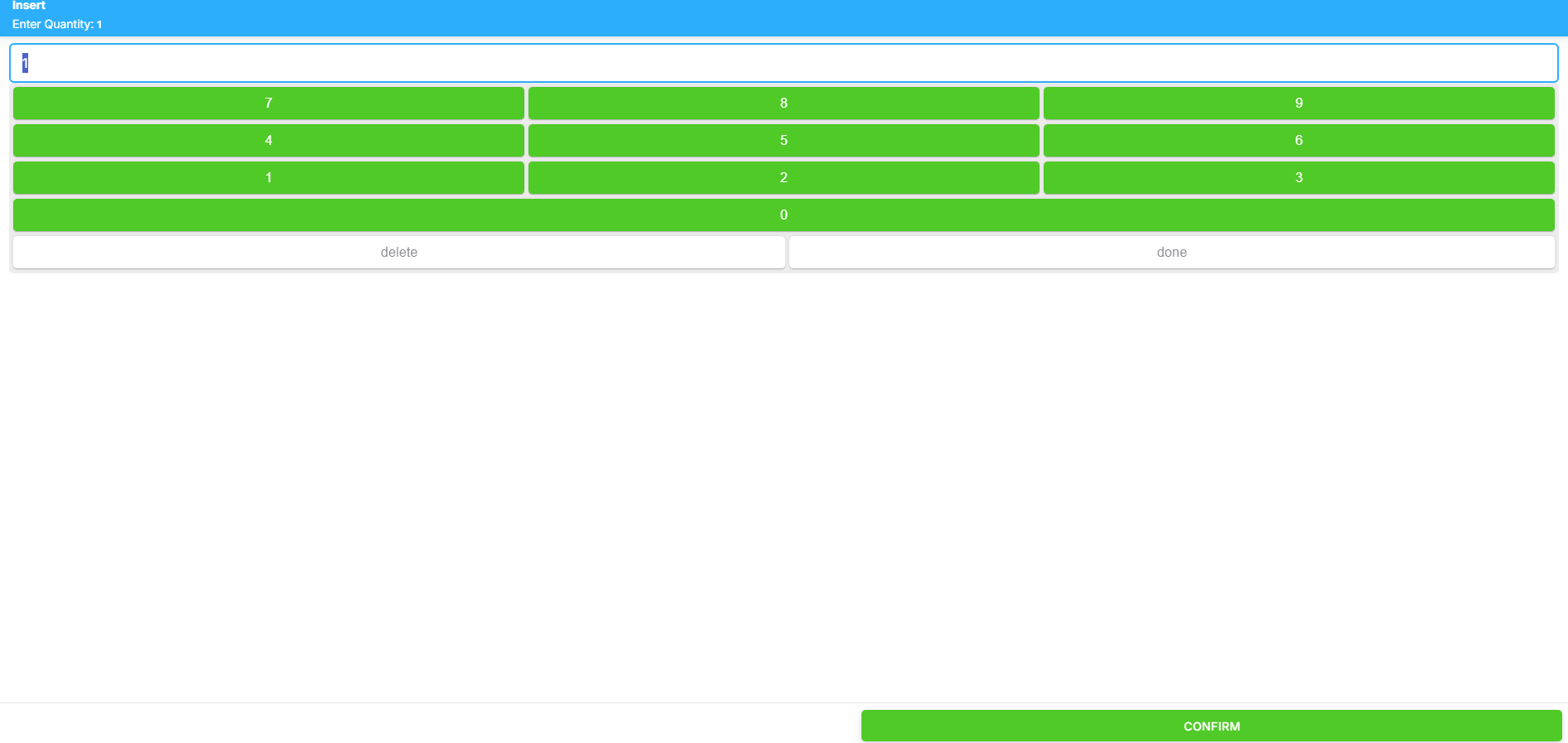
Step 7: Confirm Quantity
Enter the exact quantity of items displayed in the blue box using the keypad to ensure accuracy.
Click "Add" to confirm and relocate the items to the new storage location.
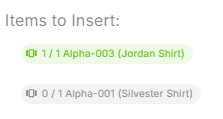
Successfully relocated items will be highlighted in green in the scan overview.
Continue scanning and relocating the remaining items.
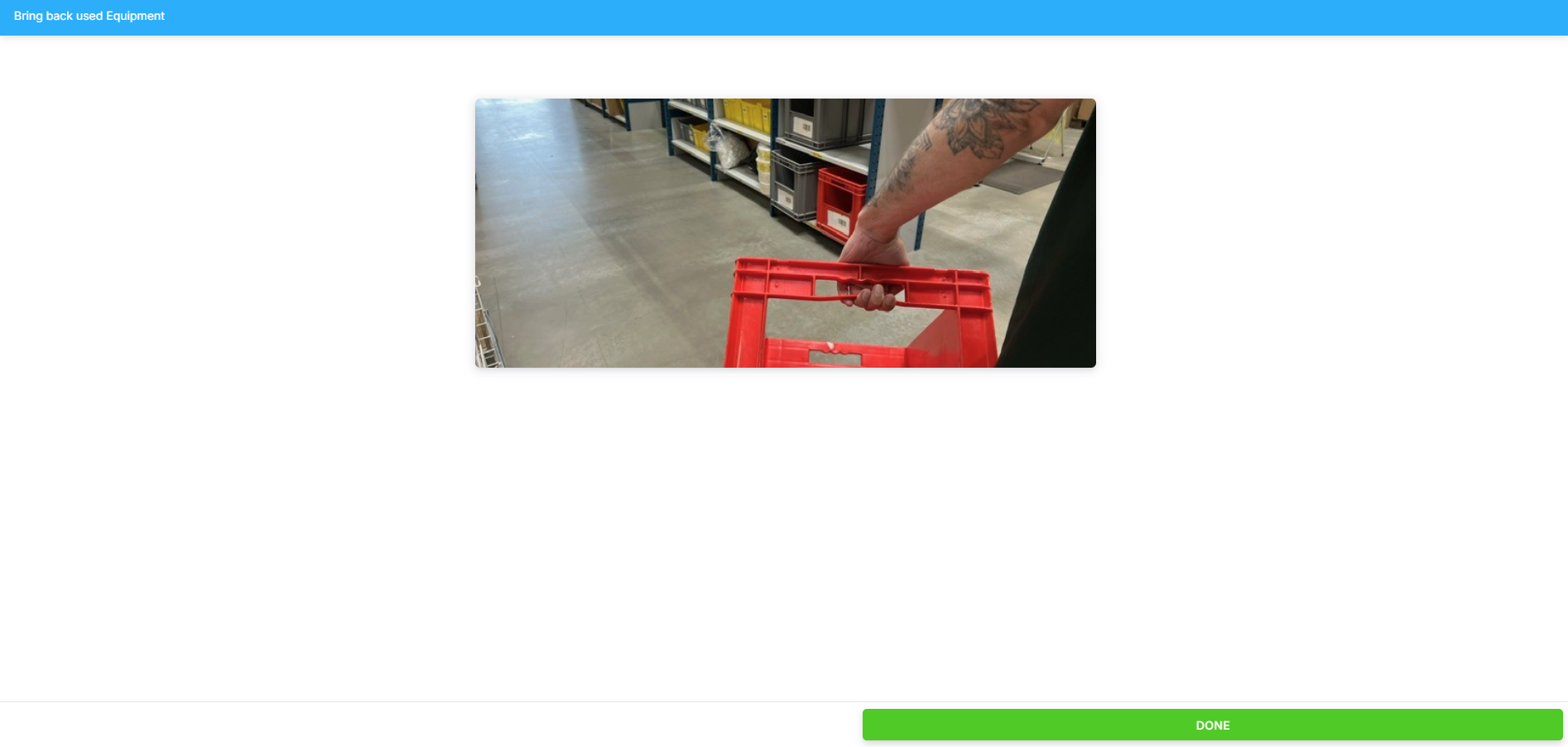
Step 8: Return Used Equipment
Return all used equipment to their designated locations.
Relocation Completed
The relocation process for the selected storage locations has been successfully completed.