Aufgabenübersicht
Klicken Sie auf eine Aufgabe, so gelangen Sie zur Aufgabenübersicht.
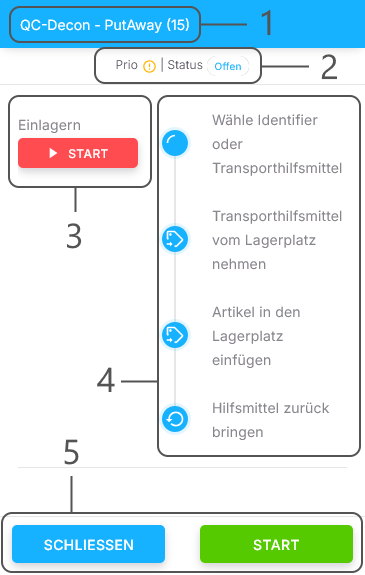
Eine Aufgabe besteht aus Aufgabenaktivitäten.
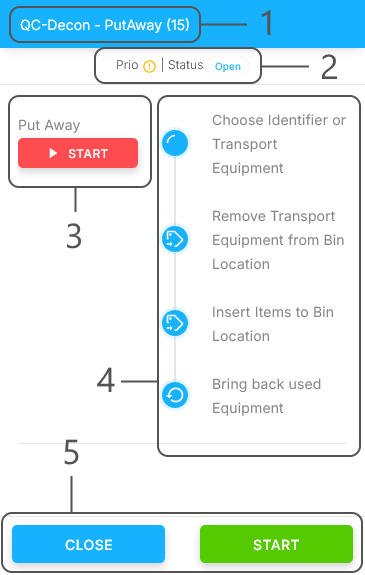
1. Titel
Hier wird der Titel und die Tasknummer angezeigt.
2. Priorität / Status
Hier wird die Priorität und der Status des gesamten Tasks angezeigt.
3. Aktivitätsaktionen
Hier steht der Typ der jeweiligen Aufgabenaktivität geschrieben, zusammen mit dessen Aktionsknopf. Mit diesem können Sie die Aufgabenaktivität starten oder fortsetzen.
Ist dieser Knopf ausgegraut, so gibt es einen Fehler, und die Aufgabenaktivität kann nicht betreten werden.
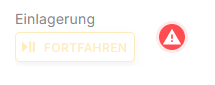
Hat die Aktivität ein Schloss-symbol, so hat sich zwischen den gespeicherten Einstellungen der Aktivität und den Erforderlichen ein Unterschied gebildet. In diesem Fall wird Ihnen eine Warnung angezeigt, und die Aktivität kann nicht betreten werden.
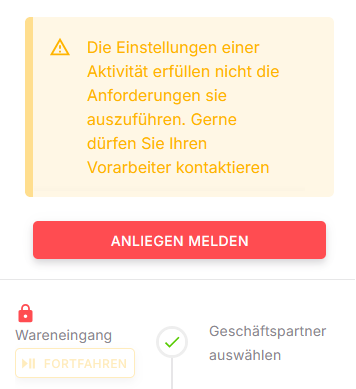
Sie haben auch die Möglichkeit, es Ihrem Vorarbeiter zu melden, sollte es noch nicht aufgefallen sein.
4. Zeitstrahl
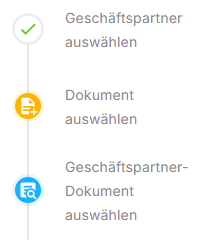
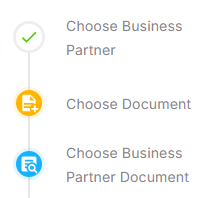
Hier werden die Arbeitsschritte angezeigt, die diese Aufgabenaktivität beinhaltet. Eine farbliche Kennzeichnung verrät, welche Schritte bereits abgeschlossen oder in Arbeit sind.
5. Aufgabenaktionen
Hier befinden sich Aktionsknöpfe für die Aufgabe. Diese sind farblich gekennzeichnet:
🟦 Schließen/ 🟨 Pause: Hiermit gelangen Sie zurück zur Aufgabenliste
🟩 Starten: Startet die Aufgabe und automatisch die erste Aktivität
🟩 Abschließen: Schließt die Aufgabe ab und leitet zur Aufgabenliste weiter
🟥 Abbrechen: Beendet die Aufgabe mit einem Kommentar
When clicking on a task within the list, you get to the task overview.
A task consists of task activities.
1. Title
This shows the task title and number.
2. Priority / Status
This shows the priority and the status of the whole task.
3. Activity actions
This shows the type of the respective task activity, as well as its action button. With that you can start or continue the task activity.
If this button is greyed out, there is an error, and the task activity cannot be entered.
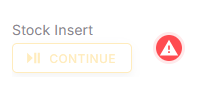
If the activity has a lock-symbol, a difference has occurred between the saved settings of the activity and the required ones. In this case you will be shown a warning, and the activity cannot be entered.
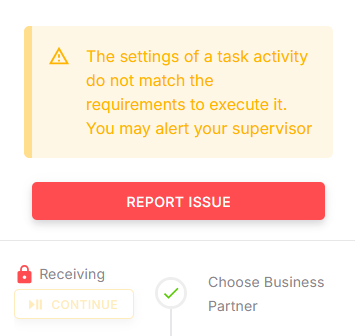
If the discrepancy has gone unnoticed, you also have the option to report this to your supervisor.
4. Timeline
This shows the steps this activity consists of. A color code shows which steps have already been completed or are in progress.
5. Task actions
These are the action buttons for the task, which are color coded:
🟦 Close/ 🟨 Pause: Exits back to the task list
🟩 Start: Starts the task, and the activity automatically
🟩 Finish: Finishes the task and redirects to the task list
🟥 Cancel: Ends the task with a comment