Arbeitsschritte
Oberfläche
Wenn Sie sich in einem Arbeitsschritt befinden, wird folgende Oberfläche angezeigt:
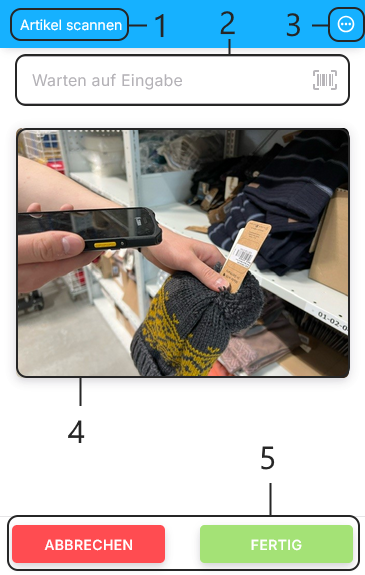
1. Titel
Der Titel beschreibt was in diesem Arbeitsschritt zu tun ist.
2. Eingabefeld
Hier geschieht die gewünschte Eingabe. Durch klicken auf das Symbol am rechten Ende des Eingabefelds kann zwischen Eingabe, Scan und Virtueller Tastatur gewechselt werden.
3. Kontextmenü
Mit dem Kontextmenü gelangen Sie zu weiteren Aktionen die in dem Arbeitsschritt möglich sind.
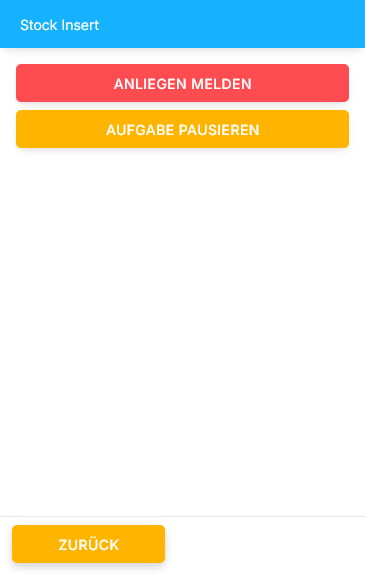
Anliegen melden
Hier kann ein Anliegen gemeldet werden, auf das Ihr Vorarbeiter antworten muss. Bis Ihr Vorarbeiter das Anliegen schließt, kann die Aufgabe nicht fortgesetzt werden.
Aufgabe pausieren
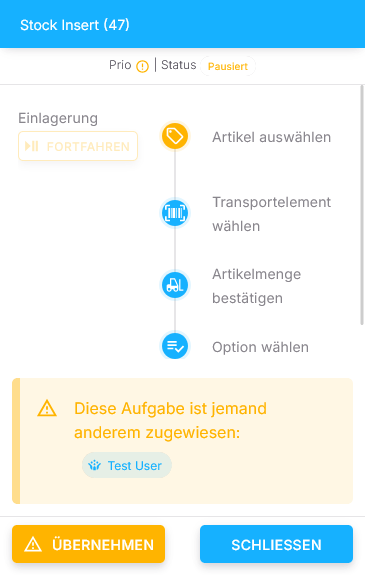
Hiermit kann eine Aufgabe pausiert werden. Durch klicken werden Sie zur Aufgabenliste weitergeleitet, und die Aufgabe erscheint Ihnen und jedem anderen Mitarbeiter Ihres Ressourcentyps als "Pausiert".
Pausierte Aufgaben können übernommen werden, beispielsweise bei einem plötzlichen Ausfall.
4. Platz für weitere Infos
Hier wird im Normalfall ein Bild angezeigt, oder andernfalls genauere Details, sofern benötigt.
5. Aktionen
Am unteren Rand der Oberfläche befinden sich die Aktionen. Folgende Aktionen sind üblich:
🟩 Fertig: Bestätigt die Eingabe
🟩 Beenden: Schließt den Arbeitsschritt ab
🟨 Überspringen: Überspringt diesen Arbeitsschritt
🟥 Abbrechen: Bricht die Aufgabenaktivität, oder je nach Situation den ganzen Task ab
Darüber hinaus gibt es noch weitere Aktionen, die allerdings auf die jeweiligen Arbeitsschritte bezogen sind.
Interface
When you're in a task activity, the following interface will be shown:
1. Title
The title gives a description about what to do in this step.
2. Input field
This is the input field. Using the symbol on the right end of the input field you can switch between input, scan and virtual keyboard.
3. Context menu
If you click on the context menu you can see more actions that are possible in the step.
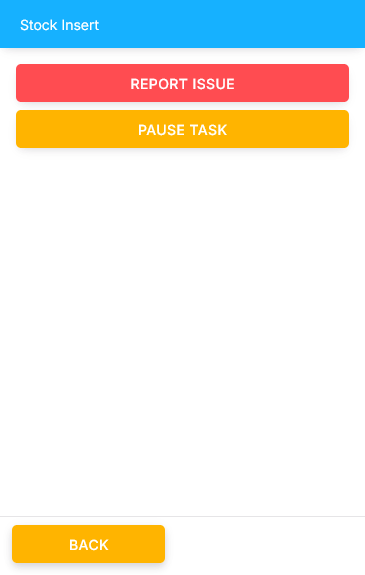
Report issue
Here you can report an issue, that your supervisor has to reply to. Until your supervisor closes the issue, the task cannot be continued.
Pause task
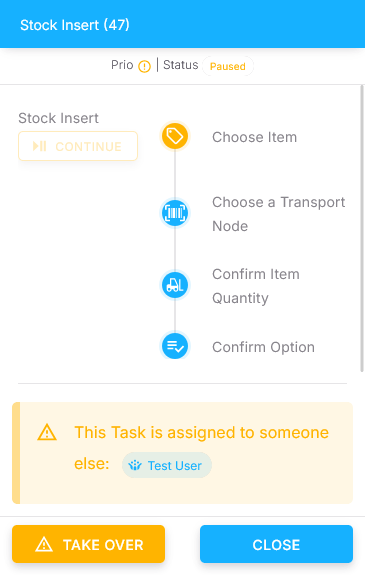
Here you can pause a task. Clicking it will redirect you back to the task list, and your task will appear as "paused" to you and every employee that is of your resource type.
Paused tasks can be taken over, for example in the case of a sudden absence.
4. Space for additional information
Usually an image is displayed here, or otherwise further details if needed.
5. Actions
On the bottom end of the interface you can see your actions, the following being the most common:
🟩 Done: Confirms your input
🟩 Finish: Finishes the step
🟨 Skip: Skips the step
🟥 Cancel: Cancels the task activity or the entire task, depending on the situation
There are more activities that are specific to their own steps.