Putaway (Einlagerung)
Schritt 1: Putaway-Auftrag auswählen
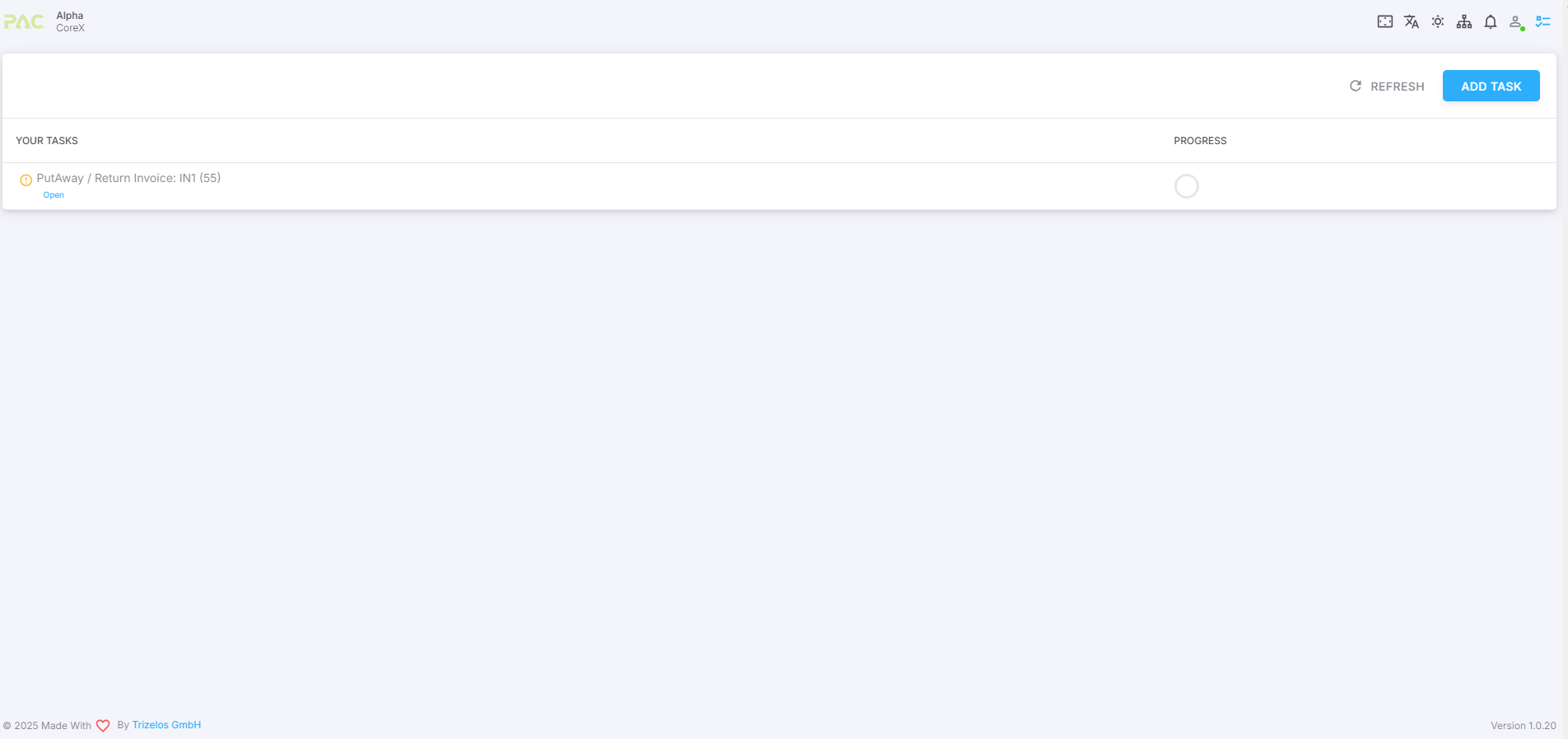
Wählen Sie in der Übersicht den Putaway-Auftrag aus. Dieser wird automatisch vom System erstellt, sobald er notwendig ist.
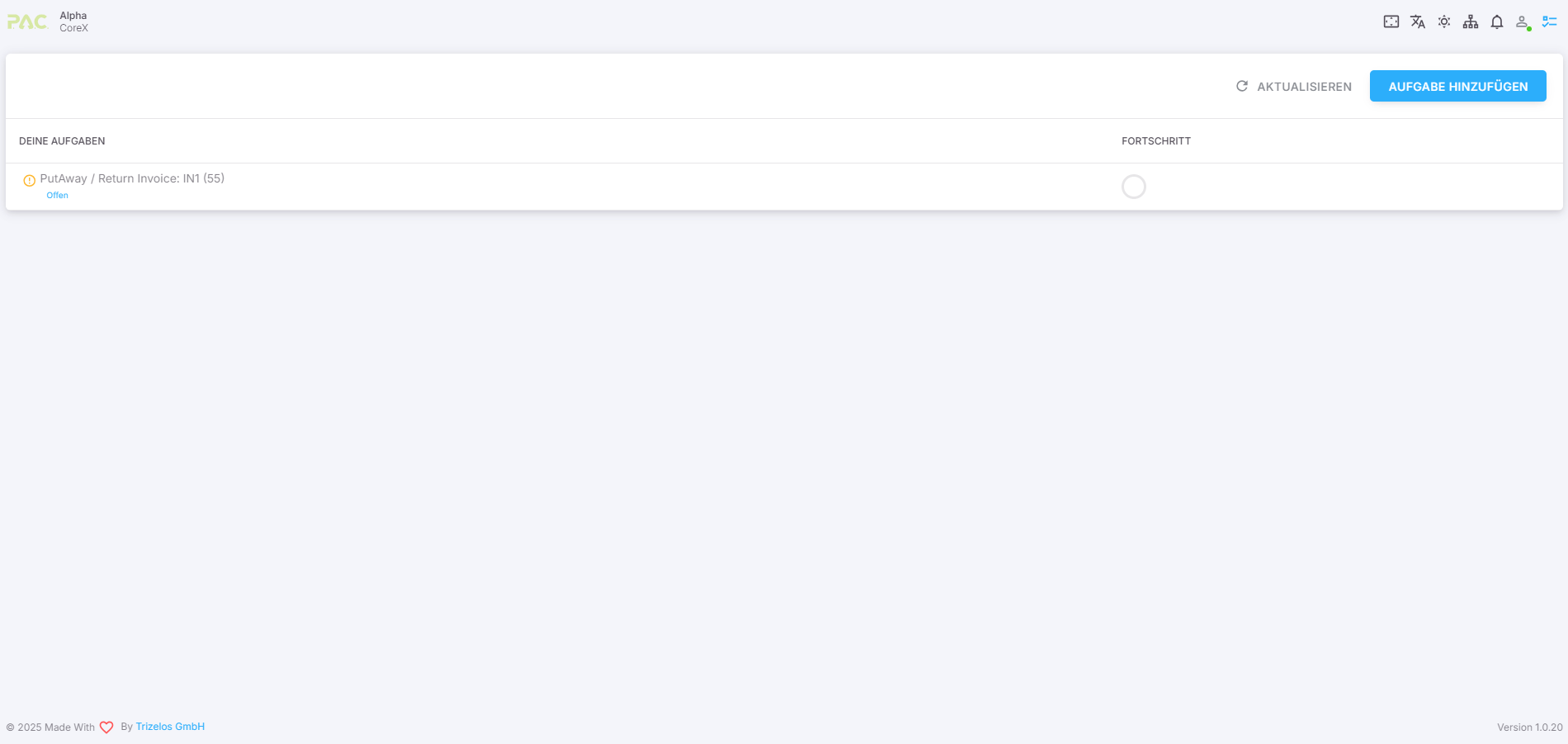
In der Fortschrittsübersicht können Sie anschließend die Aufgabe über den Start-Button beginnen.
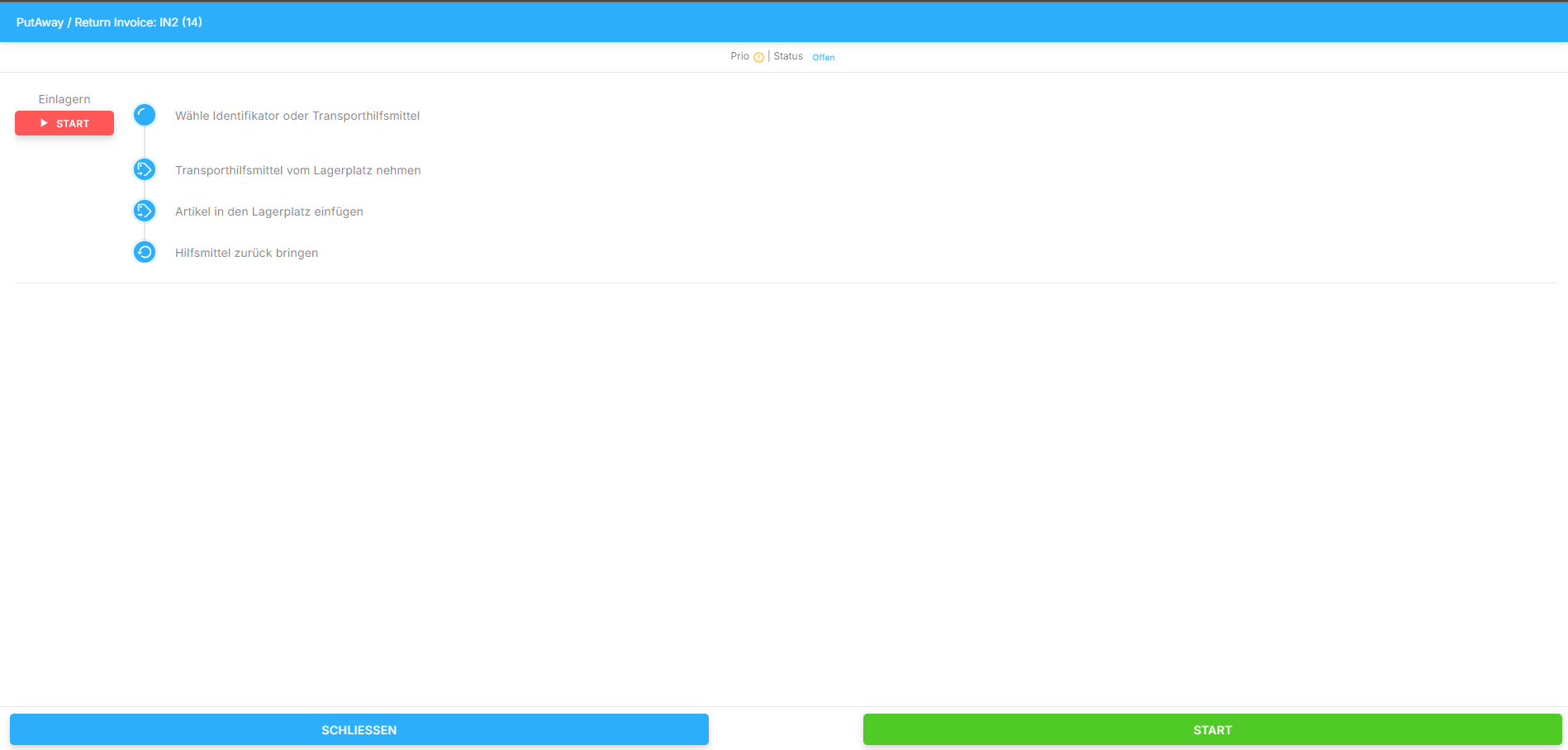
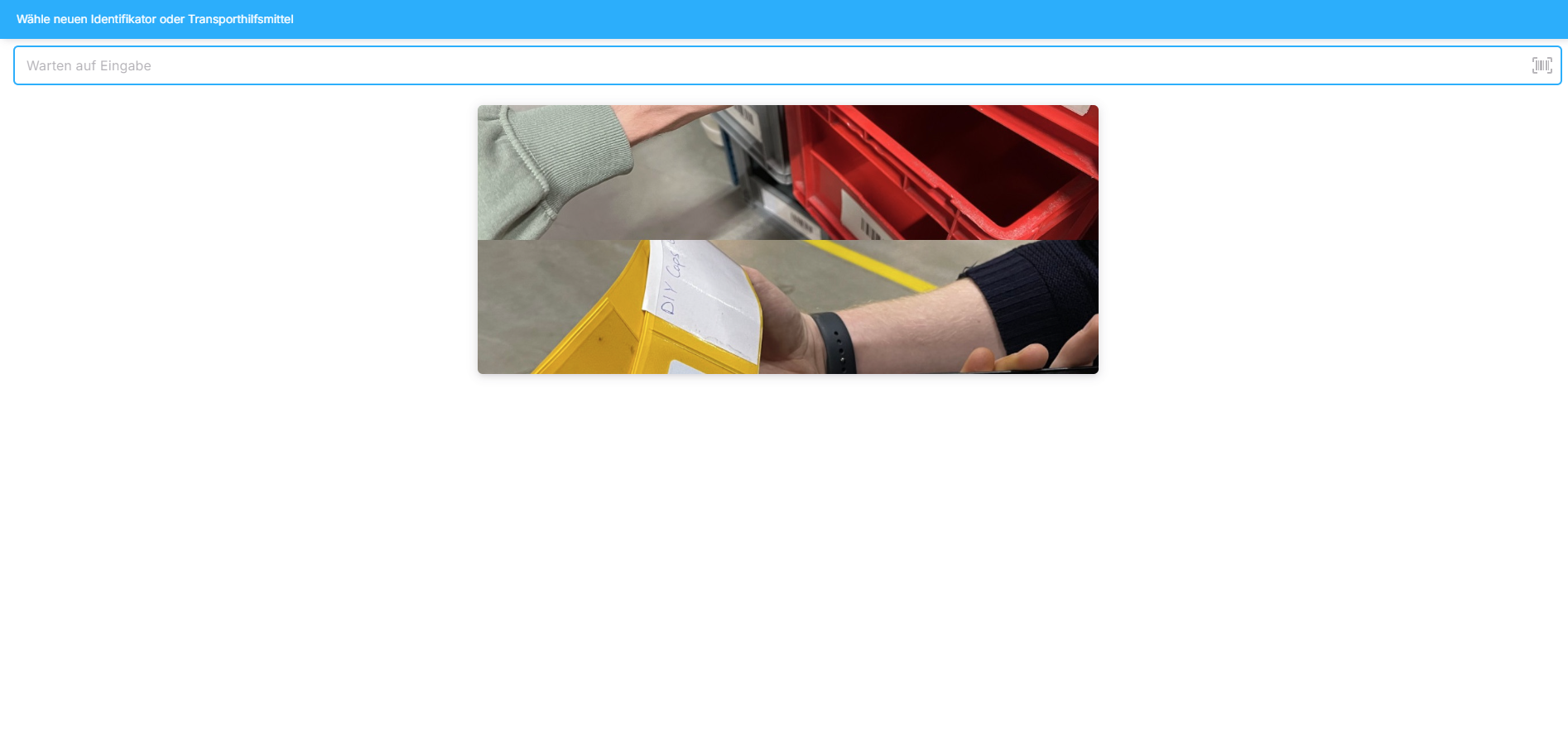
Schritt 2: Identifikator oder Transporthilfsmittel wählen
Scannen Sie den Barcode Ihres Identifikators oder Transporthilfsmittels oder geben Sie die Kennung manuell ein.
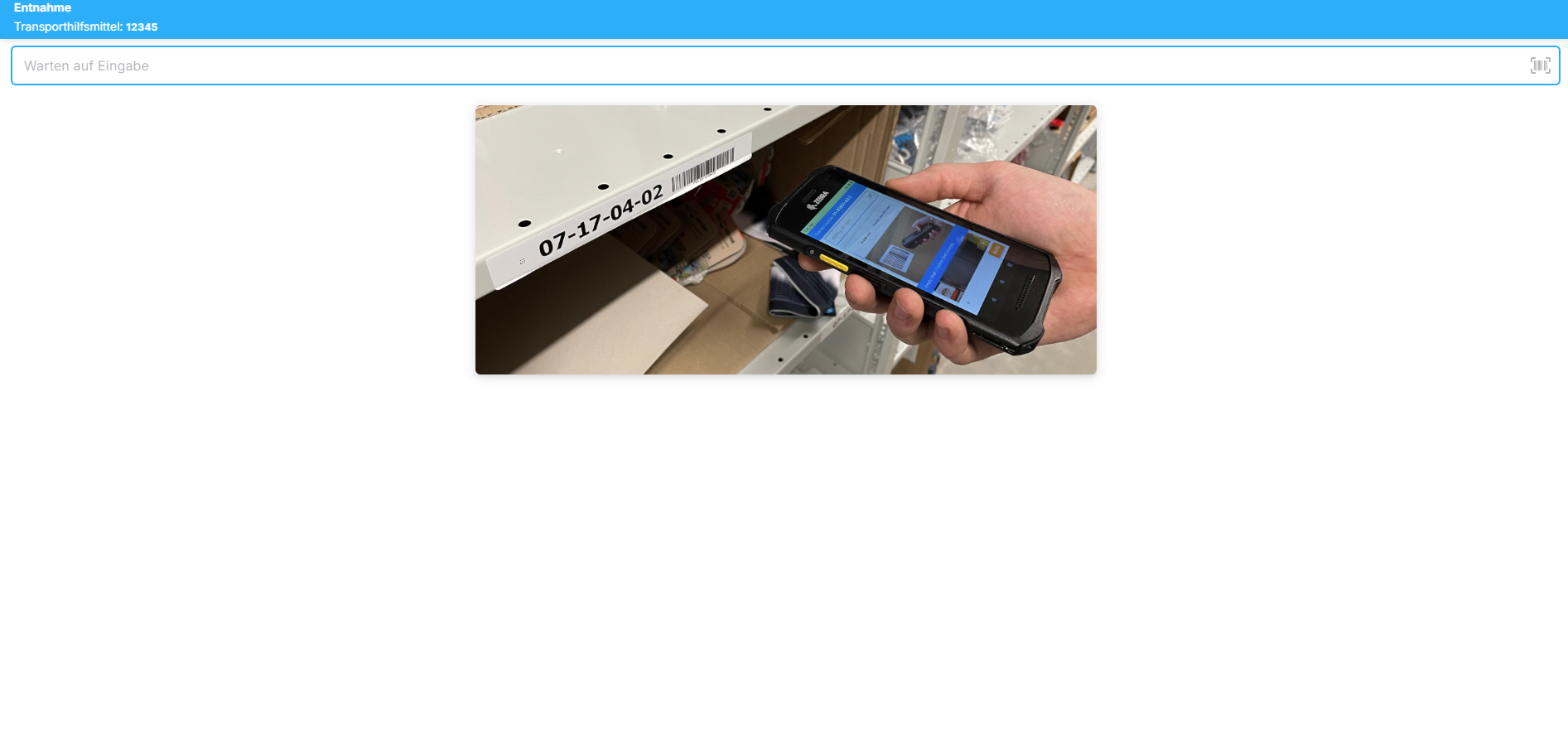
Schritt 3: Ursprungslagerplatz scannen
Scannen Sie den Lagerplatz, der oben links im blauen Kasten angezeigt wird. Dies ist der aktuelle Standort der einzulagernden Artikel.
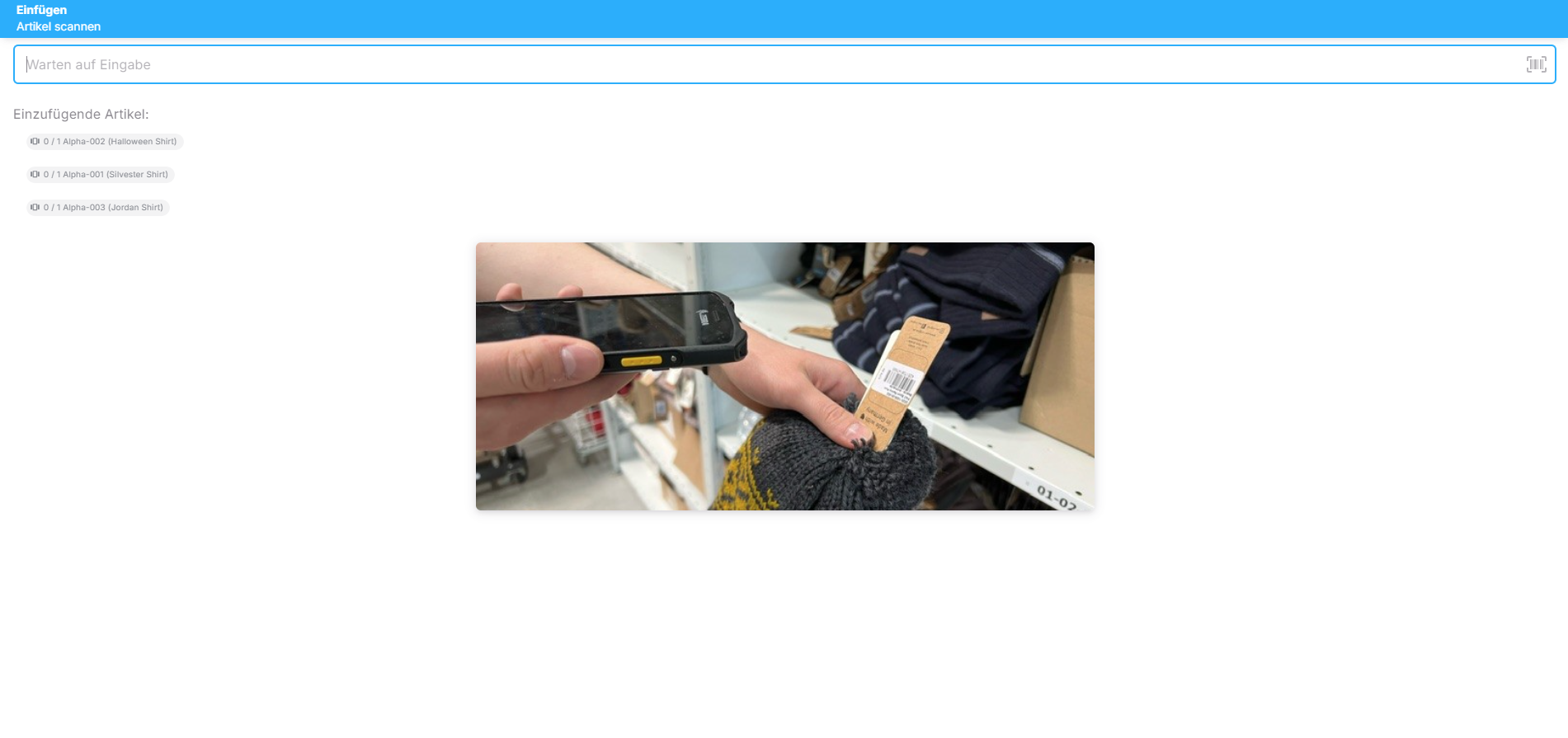
Schritt 4: Artikel scannen und in das neue Transporthilfsmittel legen
Scannen Sie die in der App angezeigten Artikel nacheinander. Platzieren Sie jeden gescannten Artikel in das neue Transporthilfsmittel.
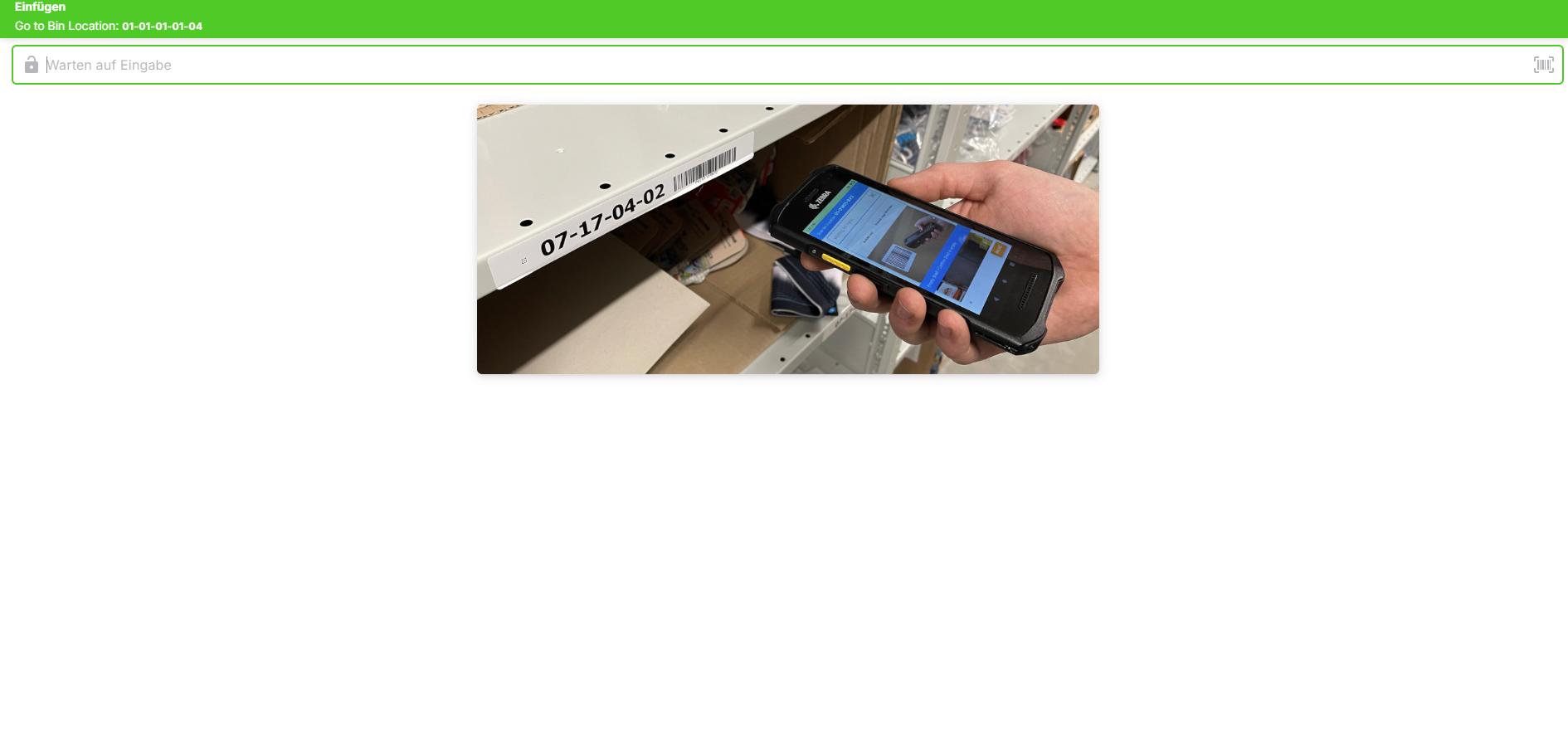
Schritt 5: Artikel zum neuen Lagerplatz bringen
Begeben Sie sich zum neuen Lagerplatz, der oben links im Kasten angezeigt wird. Scannen Sie den Lagerplatz und legen Sie die Artikel dort ab.
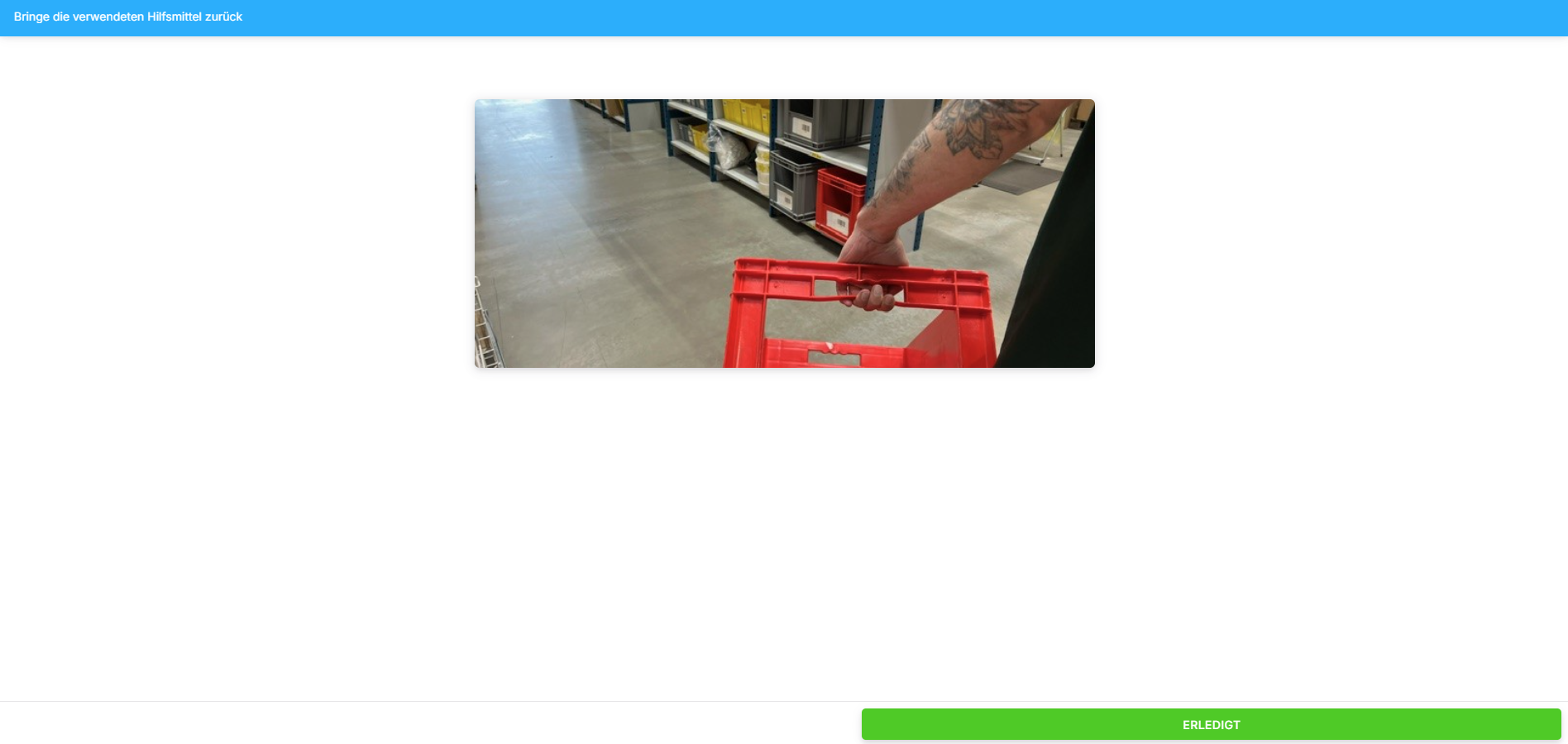
Schritt 6: Transporthilfsmittel zurückbringen
Nach Abschluss der Einlagerung bringen Sie das verwendete Transporthilfsmittel zurück an seinen ursprünglichen Platz.
Damit ist die Aufgabe vollständig abgeschlossen!

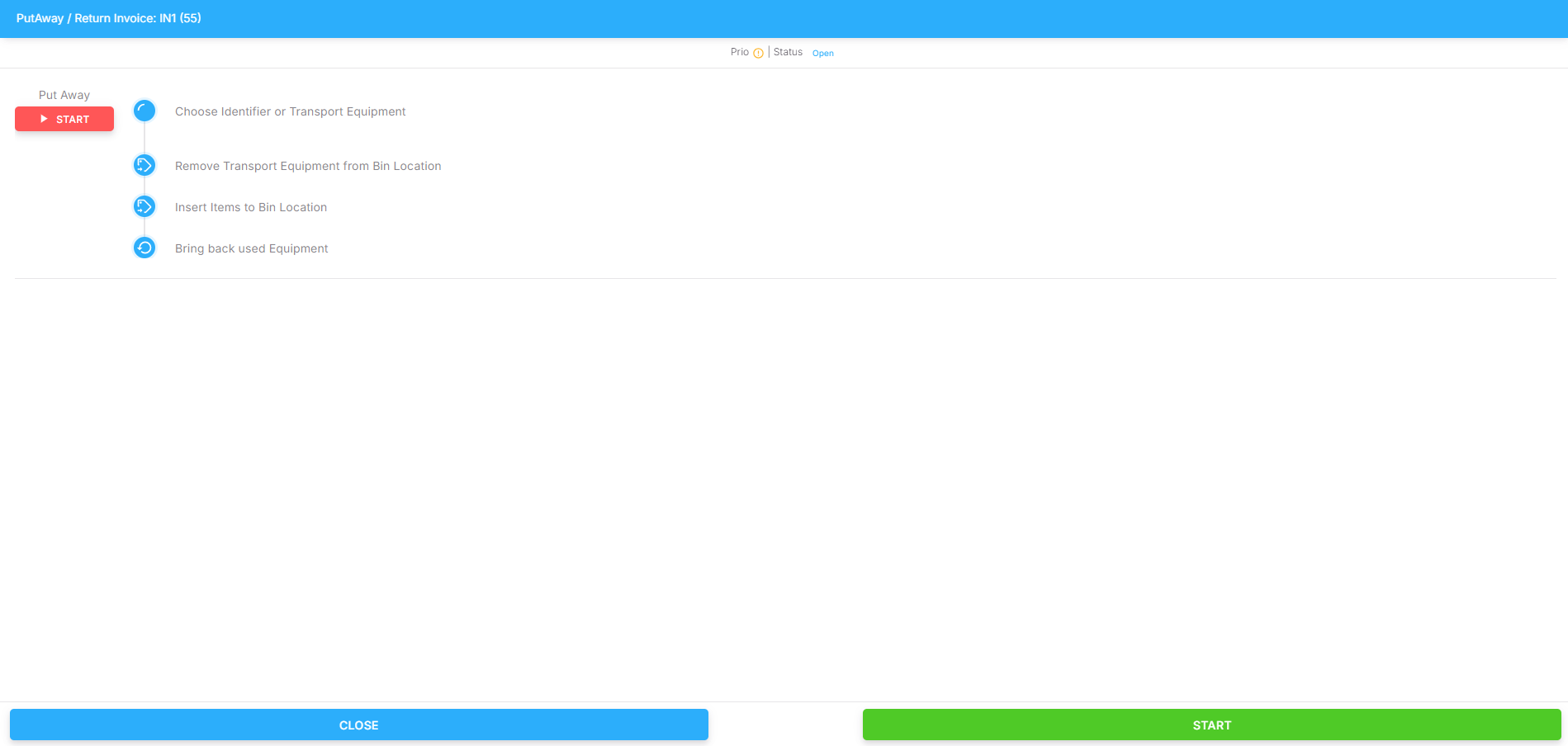
Step 1: Select Putaway Task
Select the Putaway task from the overview. This task is automatically generated by the system when required.
In the progress overview, click the Start button to begin the task.
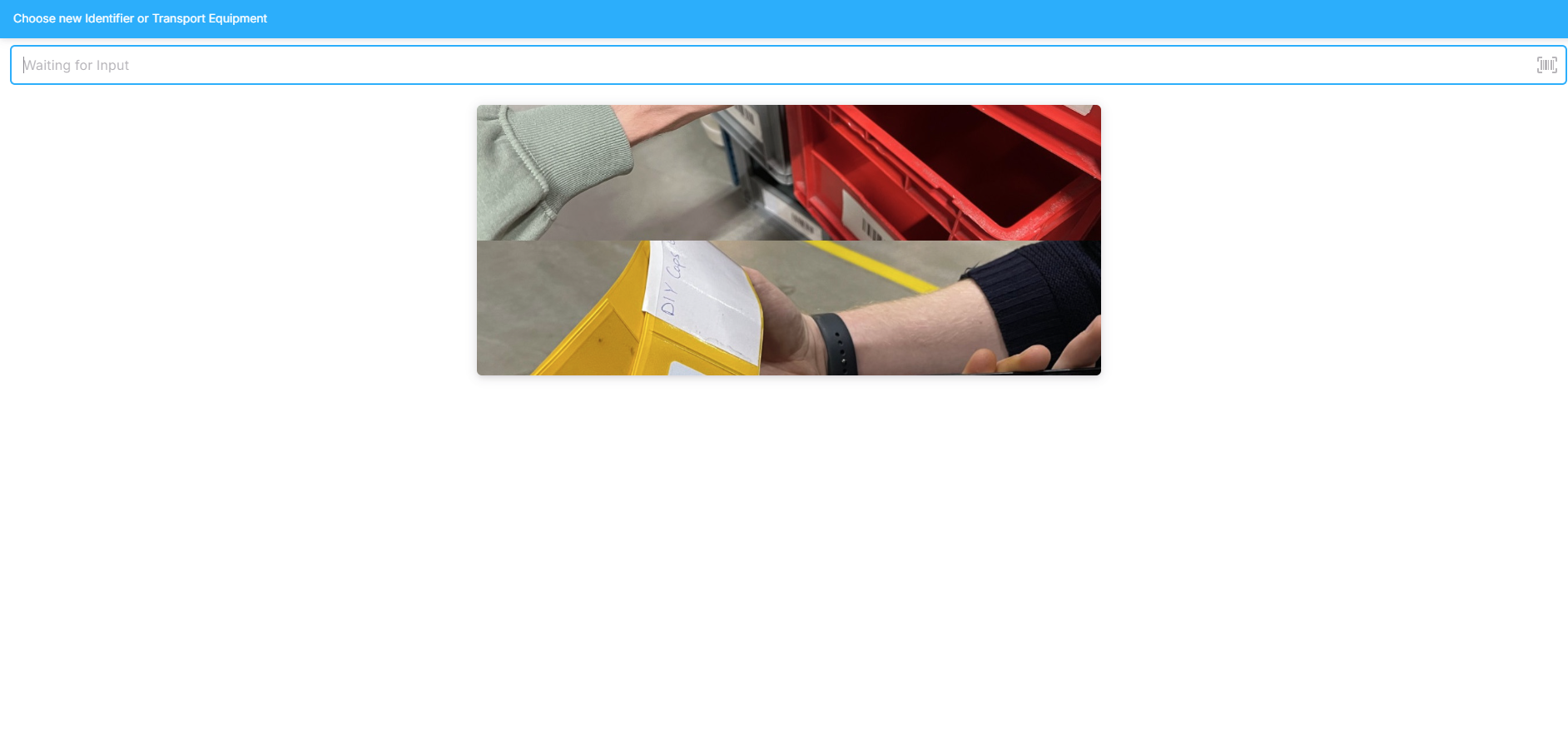
Step 2: Select Identifier or Transport Unit
Scan the barcode of your identifier or transport unit, or enter the code manually.
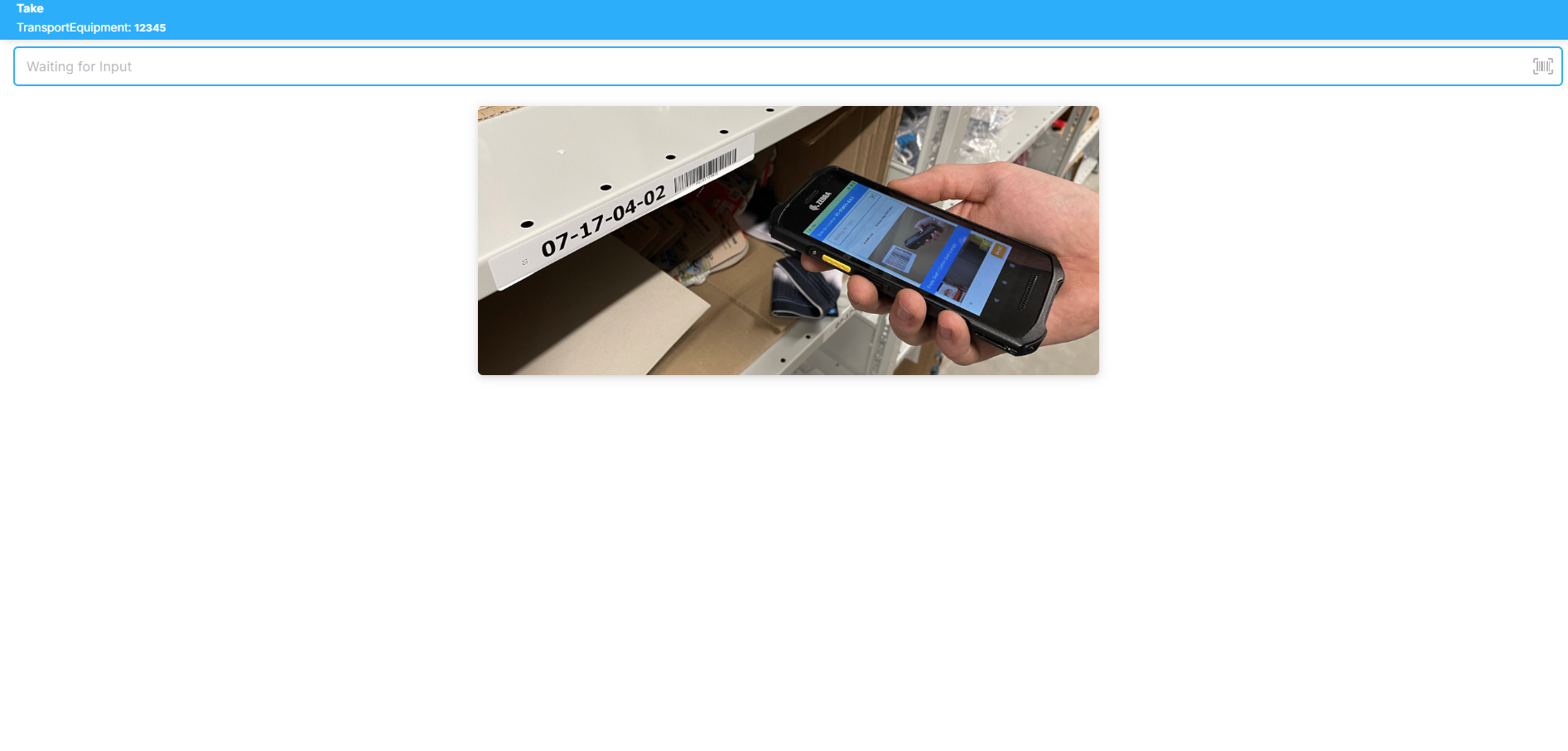
Step 3: Scan Source Storage Location
Scan the storage location displayed in the blue box at the top left. This is the current location of the items to be stored.
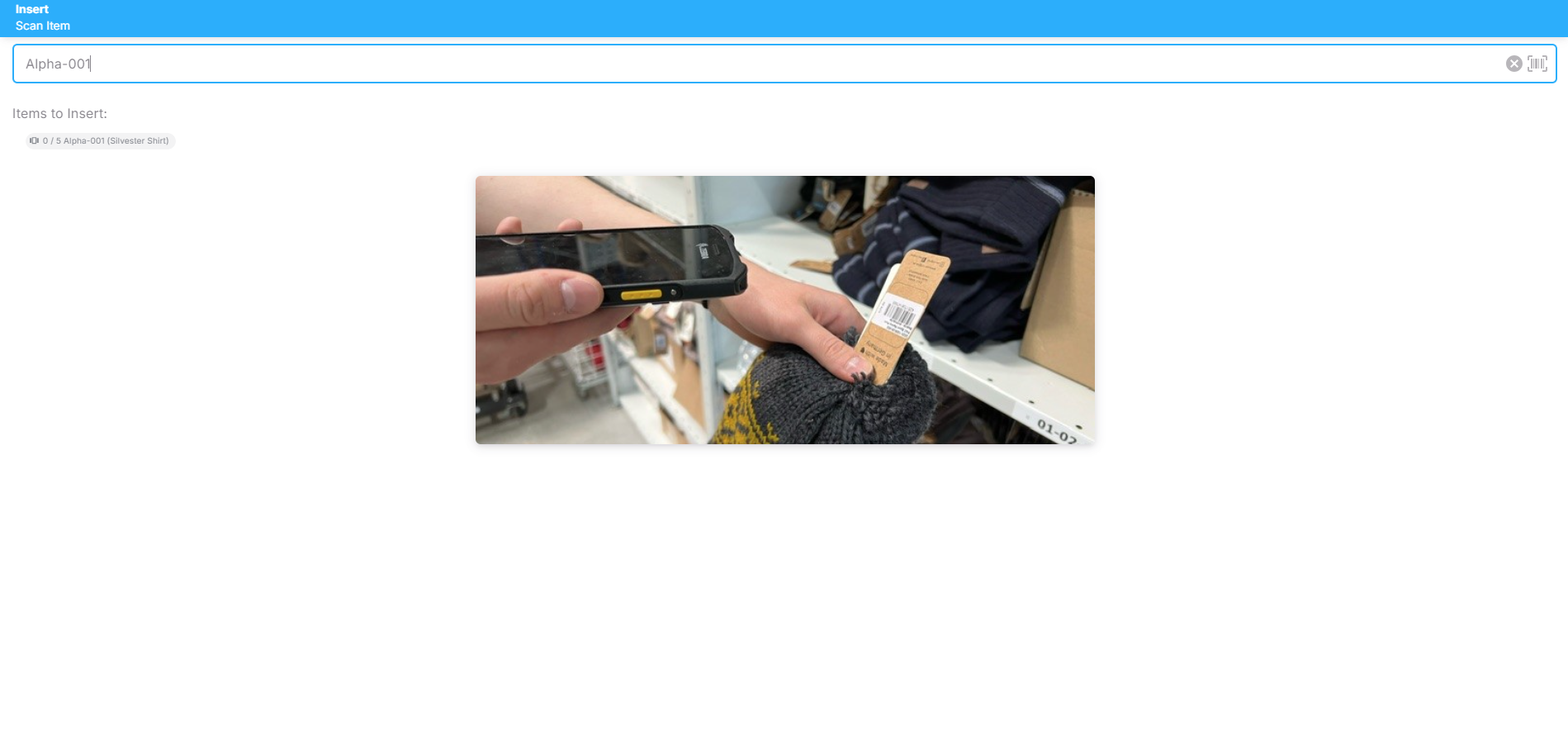
Step 4: Scan Items and Place Them in the New Transport Unit
Scan the items listed in the app one by one. After scanning, place each item into the new transport unit.
Step 5: Move Items to the New Storage Location
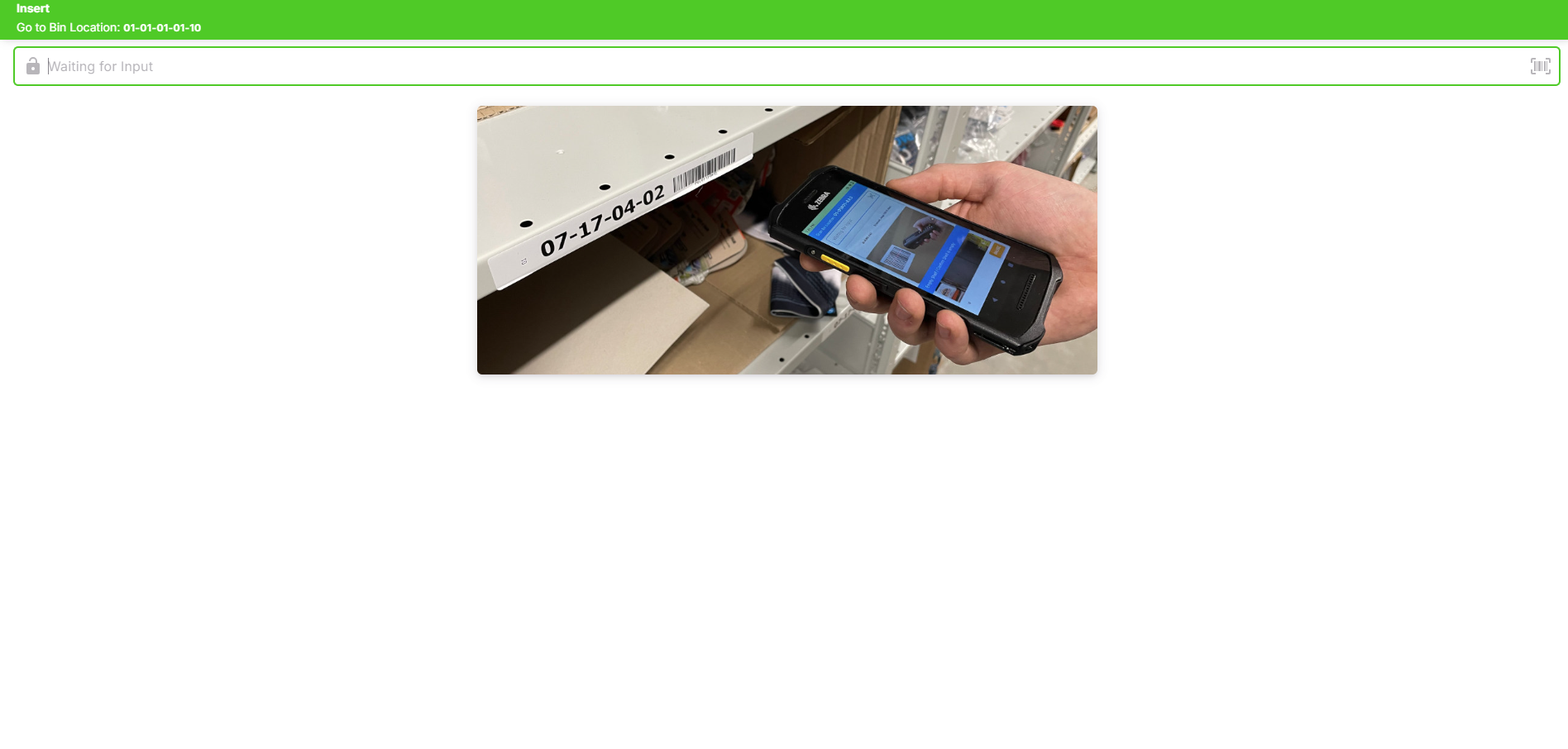
Proceed to the new storage location displayed in the blue box at the top left. Scan the location and place the items there.
Step 6: Return Transport Unit
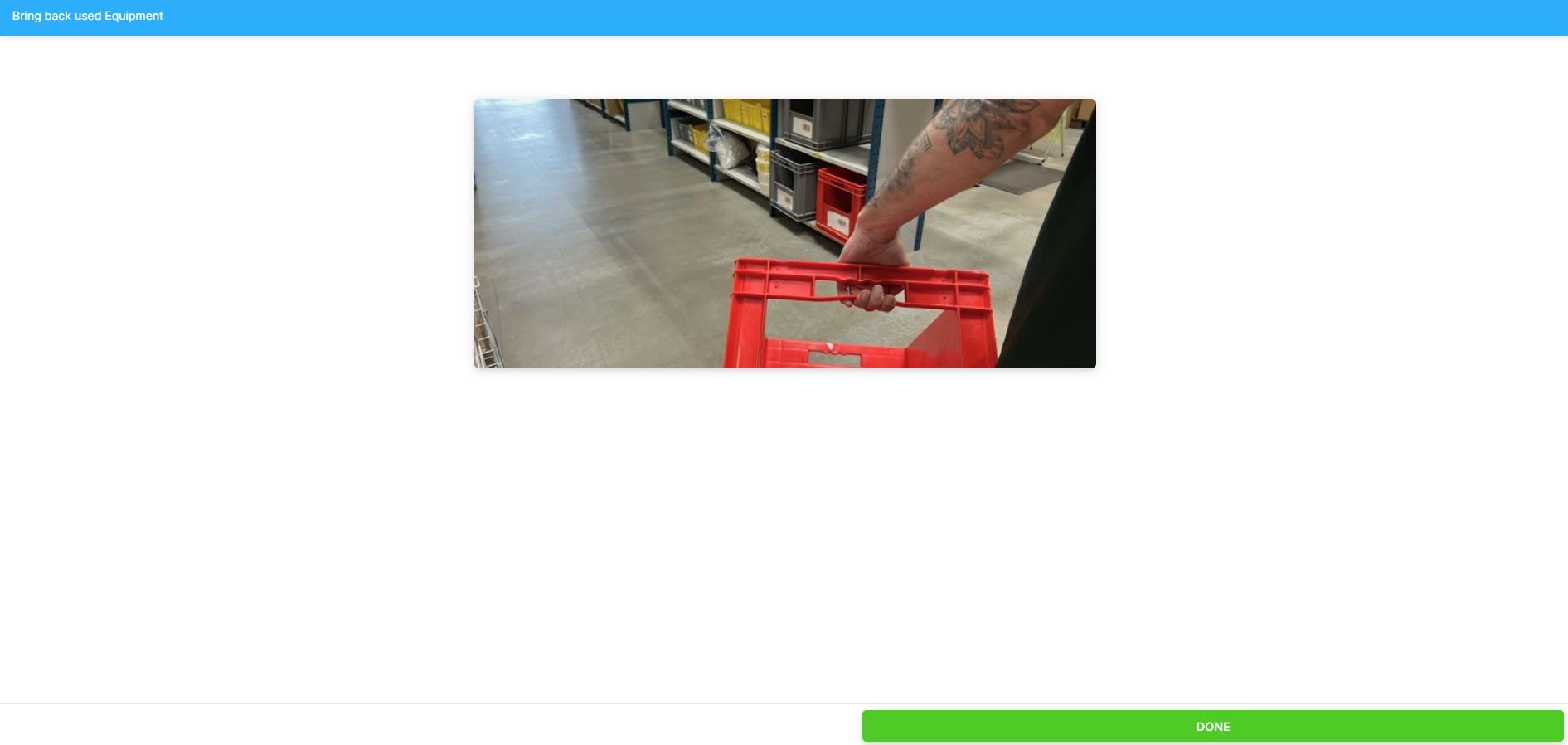
After completing the storage process, return the used transport unit to its designated place.
The task is now fully completed!